Decision tree

How can we help with authorization device MobilleSCAN?

Do you use your Citadele accounts as an individual?

Do you want to install MobileSCAN for the first time (because you haven't had MobileSCAN before)?

How do you reactivate MobileSCAN in the app if I have previously already used MobileSCAN?

You can reactivate MobileSCAN in online bank by following the instruction here or doing this straight in your mobile device!

If your app was transferred from your old device or reinstated from backup, you will have to delete it and reinstall from AppStore / Google Play.

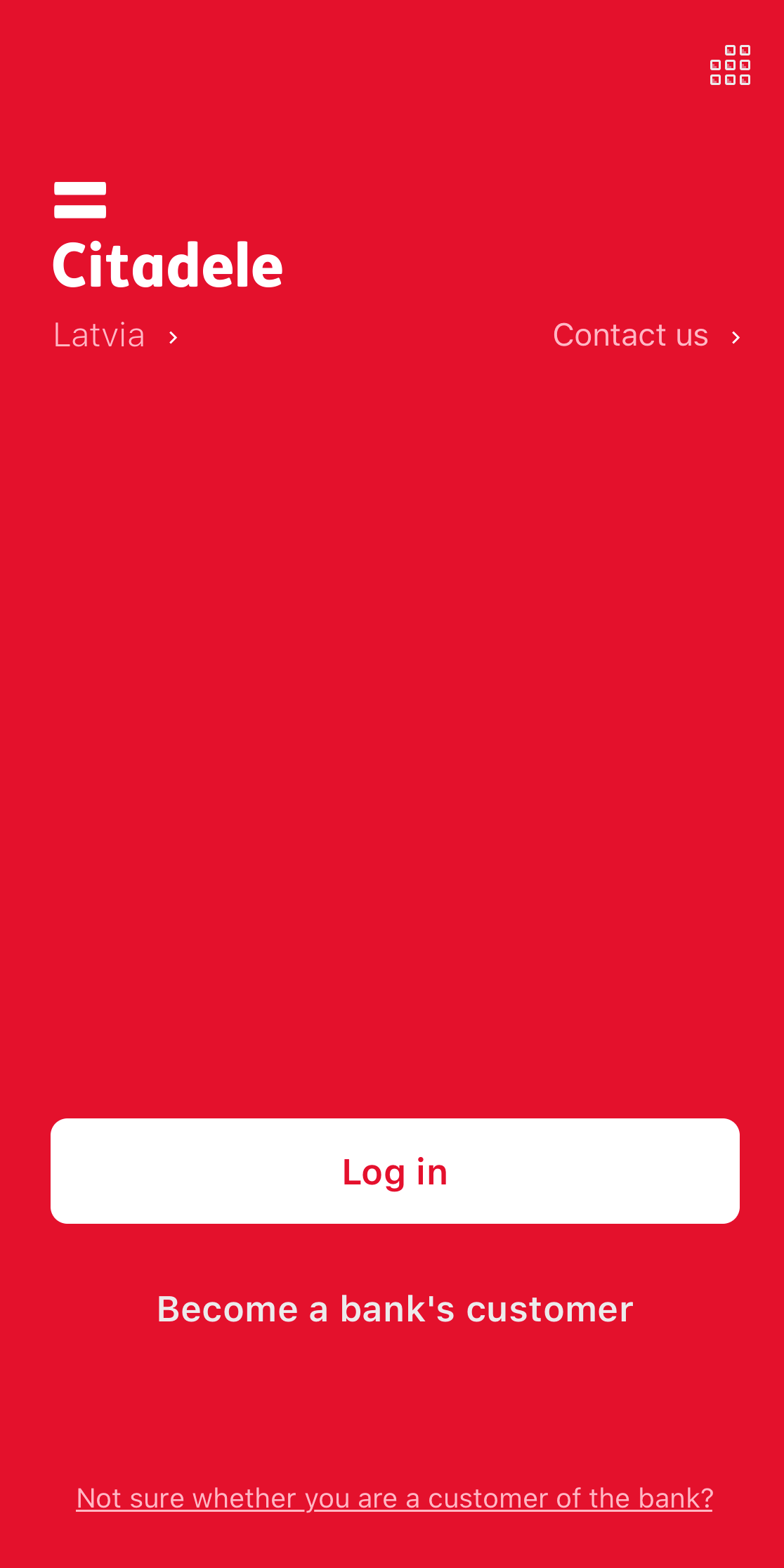
To reactivate MobileSCAN in your phone app, you will need to verify yourself with a selfie and a personal ID document. First open the Citadele app and select Log in.

screenshot of the welcome screen in Citadele mobile app

Enter your username and personal code or phone number, and press Continue. If you can't remember your username, take a look here. 
Keep in mind that this phone number must match the number listed in your contact information. 

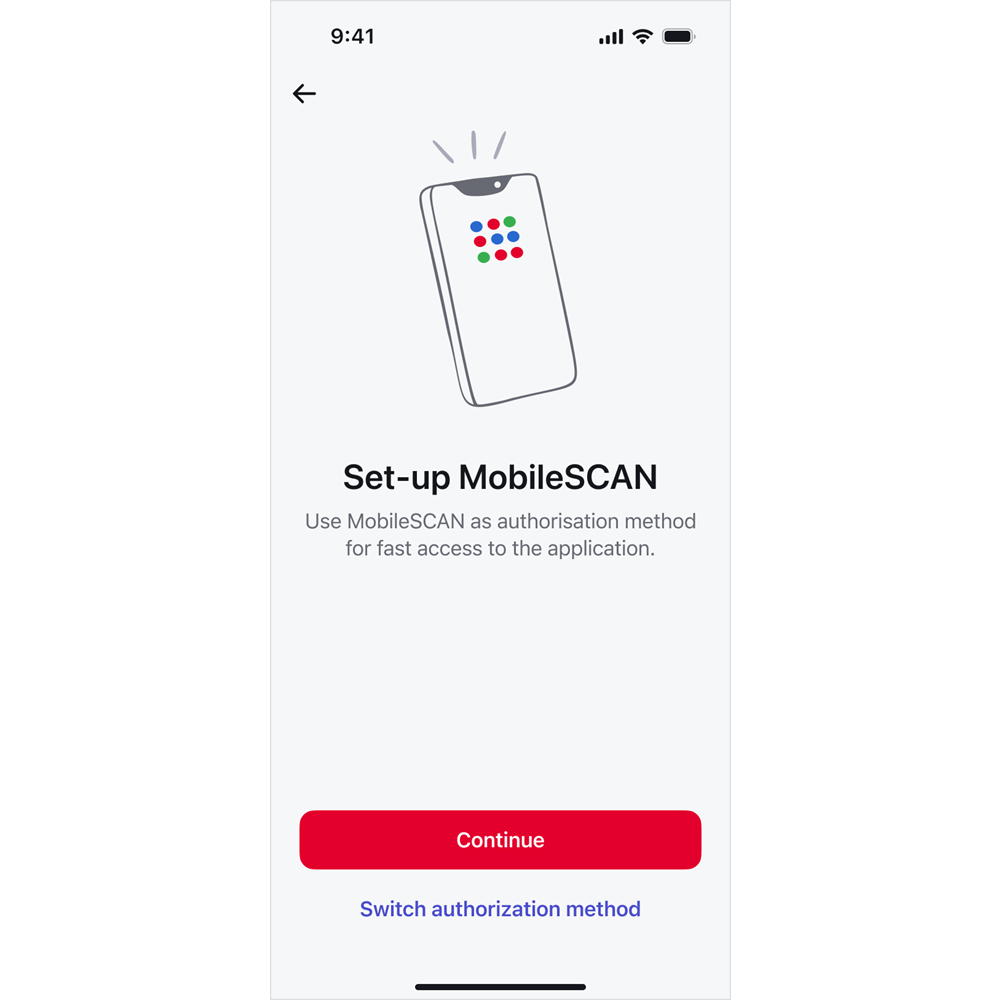
You will be taken to the MobileSCAN activation screen. Click on Continue. 

screenshot of the first MobileSCAN set-up screen in Citadele mobile app

Follow the steps in your phone and MobileSCAN will be ready to use. 

Please note that this functionality is available for app version 45.6 (or newer) for iOS or 45.5 (or newer) for Android.

Are you satisfied with the answer?

Do you know your Online Banking username?

Where can I find my username for online bank?

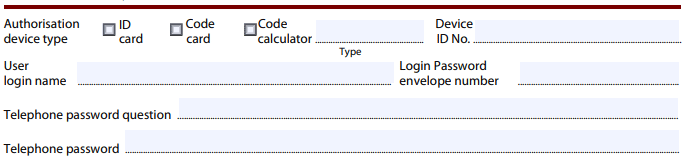
You created your username for the Online Bank when you submitted the application called “Application to Activate the Citadele Online Bank”. You can find your Online Banking username in this application under “Authorisation tool type”.

If you became a client on the app, you received your username by text to the phone number you indicated.

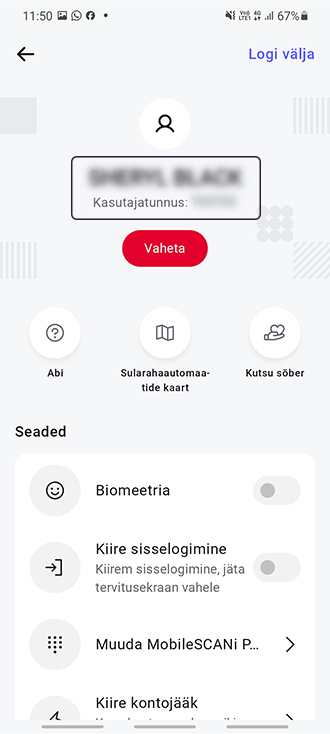
If you have access to the Citadele app, log in to it, click on the profile icon on the top right corner, under your name and surname will be your online bank username.

If you cannot find the application which contains your Online Banking username, you will have to visit a Citadele branch and bring a form of ID (passport or ID card) or contact us by calling +372 77 00 000. 

Are you satisfied with the answer?

Do you know your Online Banking password?

Do you have code calculator or code card?

How do I renew my Online Banking password?

If you have forgotten your password, you can renew it remotely following these steps (currently only using a PIN calculator or Digipass):

1. Visit the Online Bank at online.citadele.lv and click on “Forgot password?”
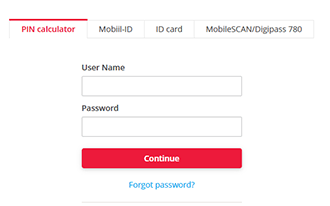
2. Enter your username and mobile phone number. Make sure your phone number matches the one registered with the bank (the one in your client information). Note that if your phone number has changed and you’ve notified the bank within the past 7 days, remote password renewal won’t be possible. 
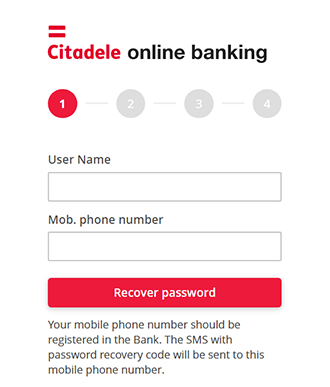
3. An SMS will be sent to your registered phone number with a one-time passcode. Once you receive the message, enter this code into the relevant field on screen.
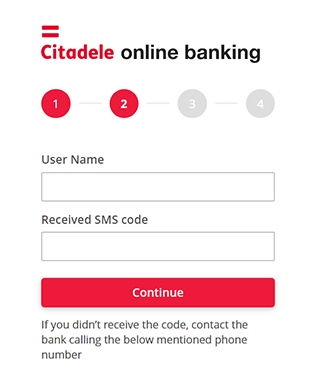
5. Enter the SMS code again, and choose a new password, repeat it and click "Save". 
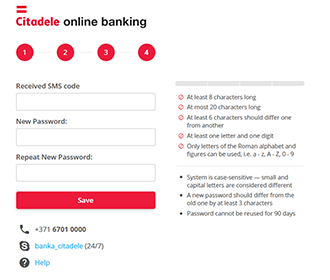
Remember! You can only change your password remotely using the Online Bank, not the mobile app.

If you do not receive an SMS, here are alternative methods to unblock your password and verify your contact details, including your phone number:

  • call +372 77 00 000
  • visit our branch and bringing a form of identification (passport or ID card).

If you’re unable to use the GO3 calculator due to a block caused by an incorrect code, contact us by calling +372 77 00 000.

In case you have forgotten your PIN for MobileSCAN, follow the instruction here.
Are you satisfied with the answer?