If you are Citadele´s customer, one of the ways that you can obtain MobileSCAN license individually in your own Online bank.
If you are just overseeing other customer´s accounts and you have not perviously used MobileSCAN, you should contact our customer support for further instructions.
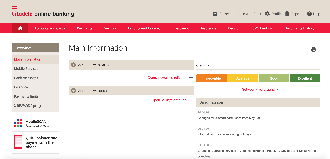
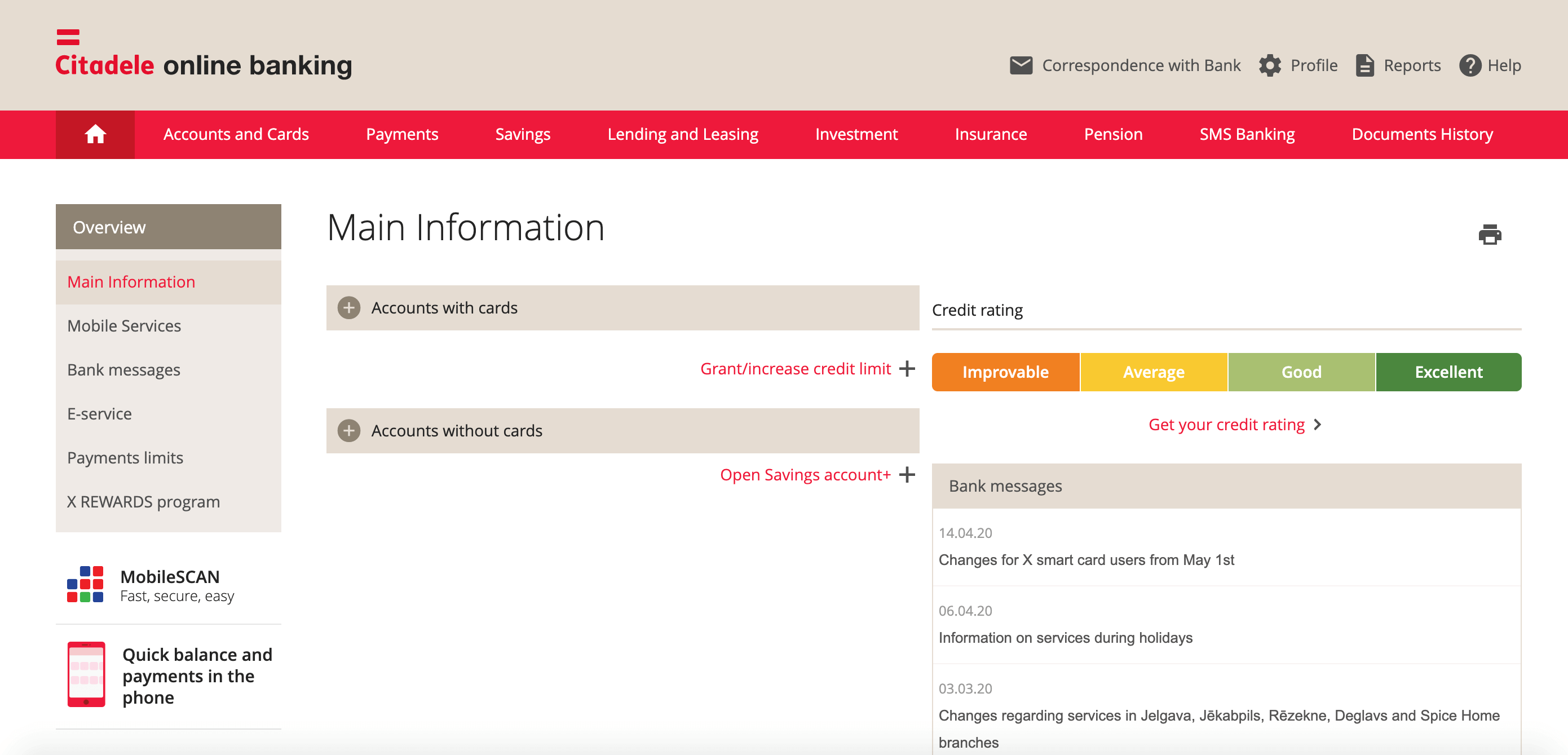
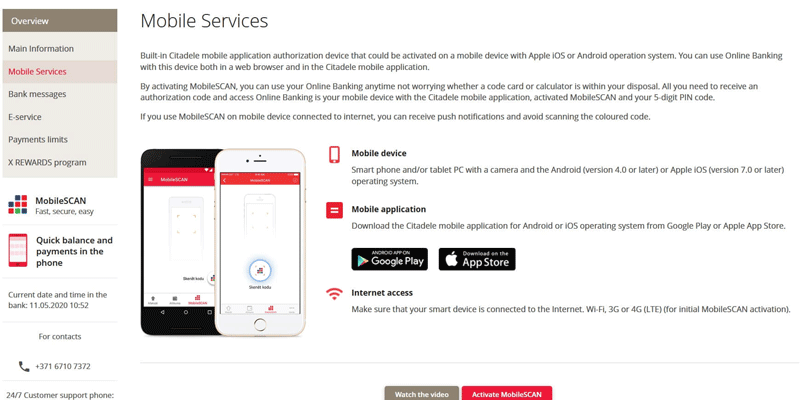
1. Log into the Citadele online bank Citadele online bank with any other available authorisation method, and on the left-hand side, choose Mobile Services.
Bear in mind that this is only available if you are the account holder!
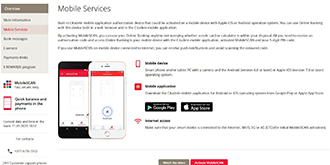
2. Read the information displayed and click Activate MobileSCAN.
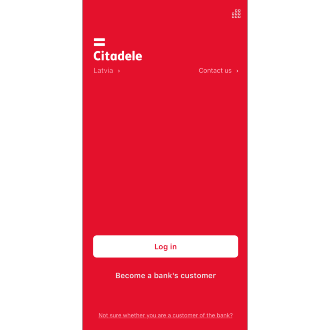
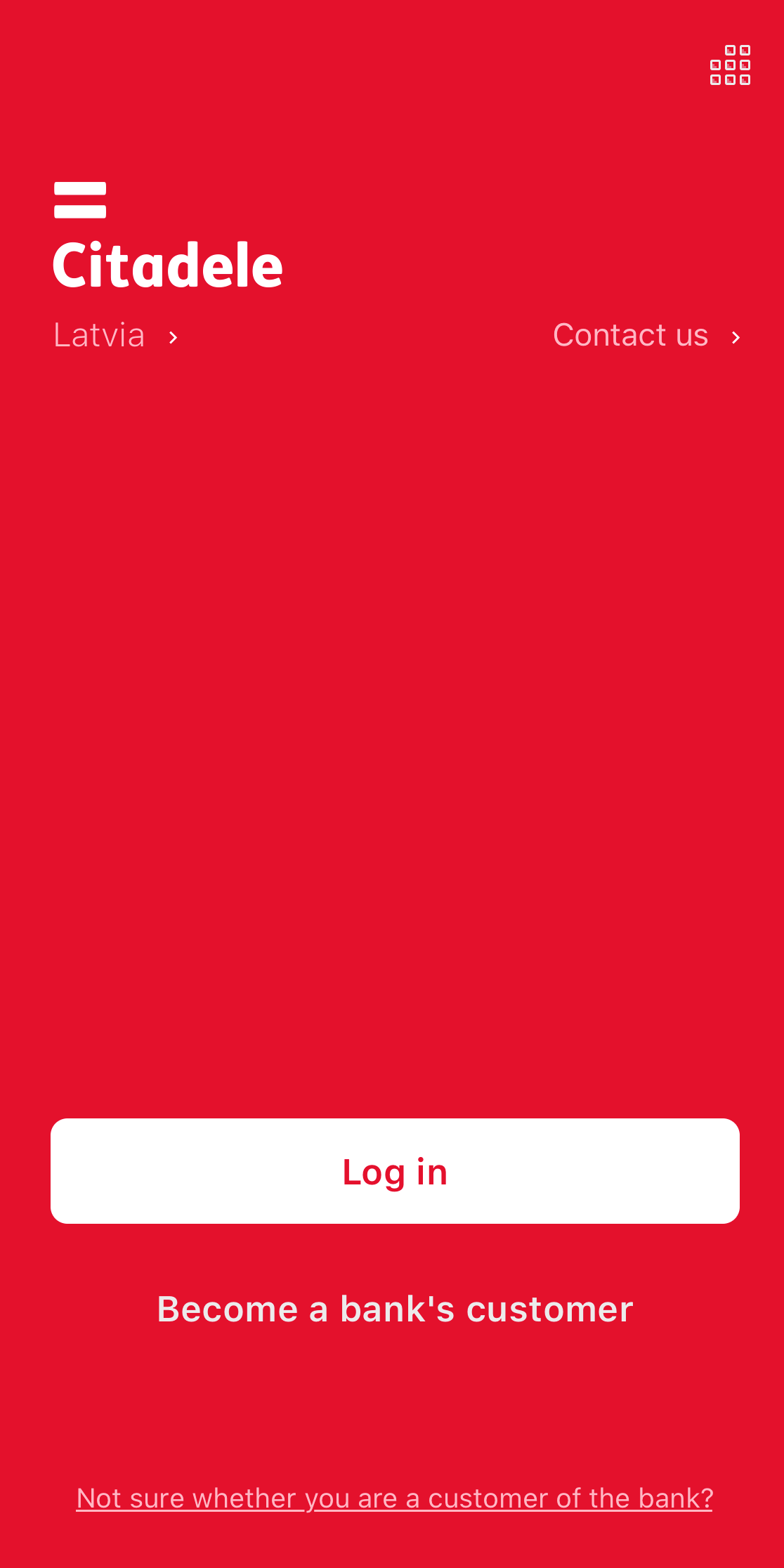
3. In parallel, take the mobile device for which you wish to activate MobileSCAN, open the Citadele app and click MobileSCAN on the welcome screen. You will see a screen from which you can begin activating MobileSCAN.
Make sure that you have reinstalled the application before starting the process!
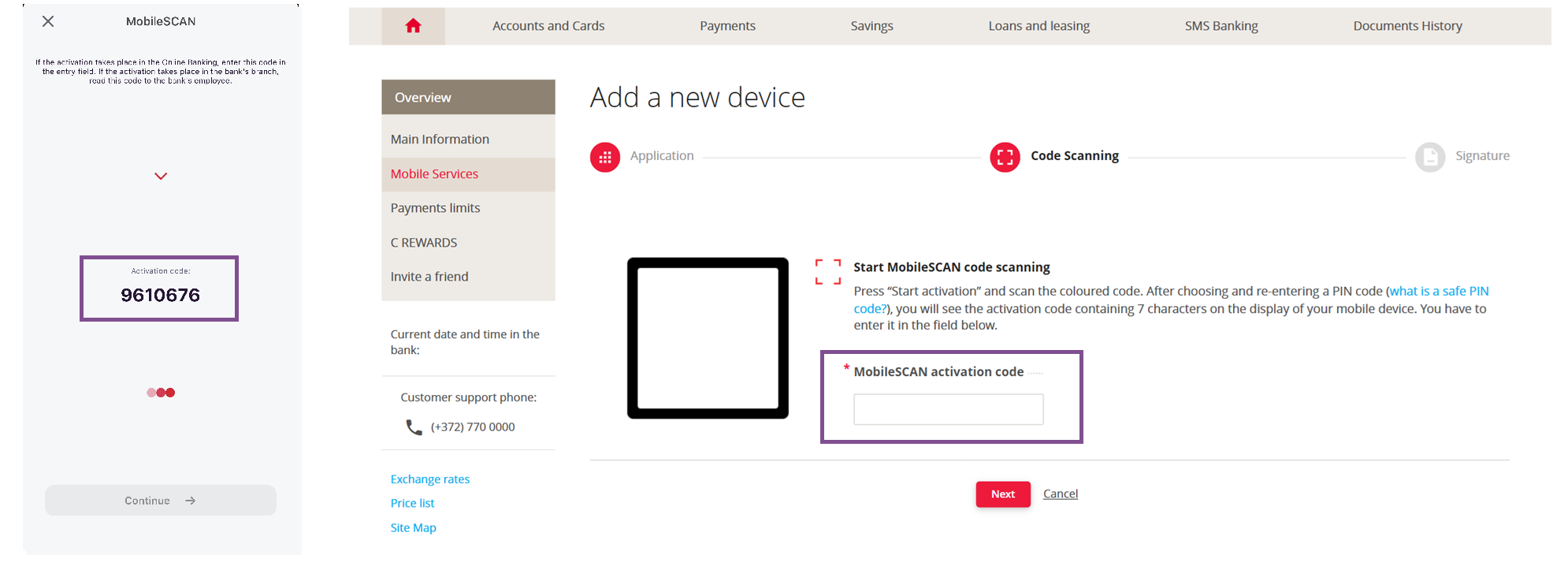
4. In the online bank, click Scan Code and use your phone to scan the colourful code from the online bank.
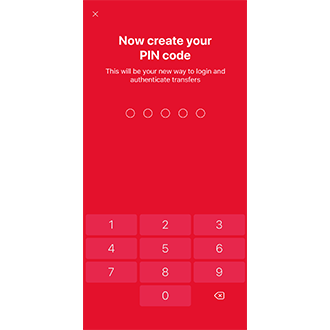
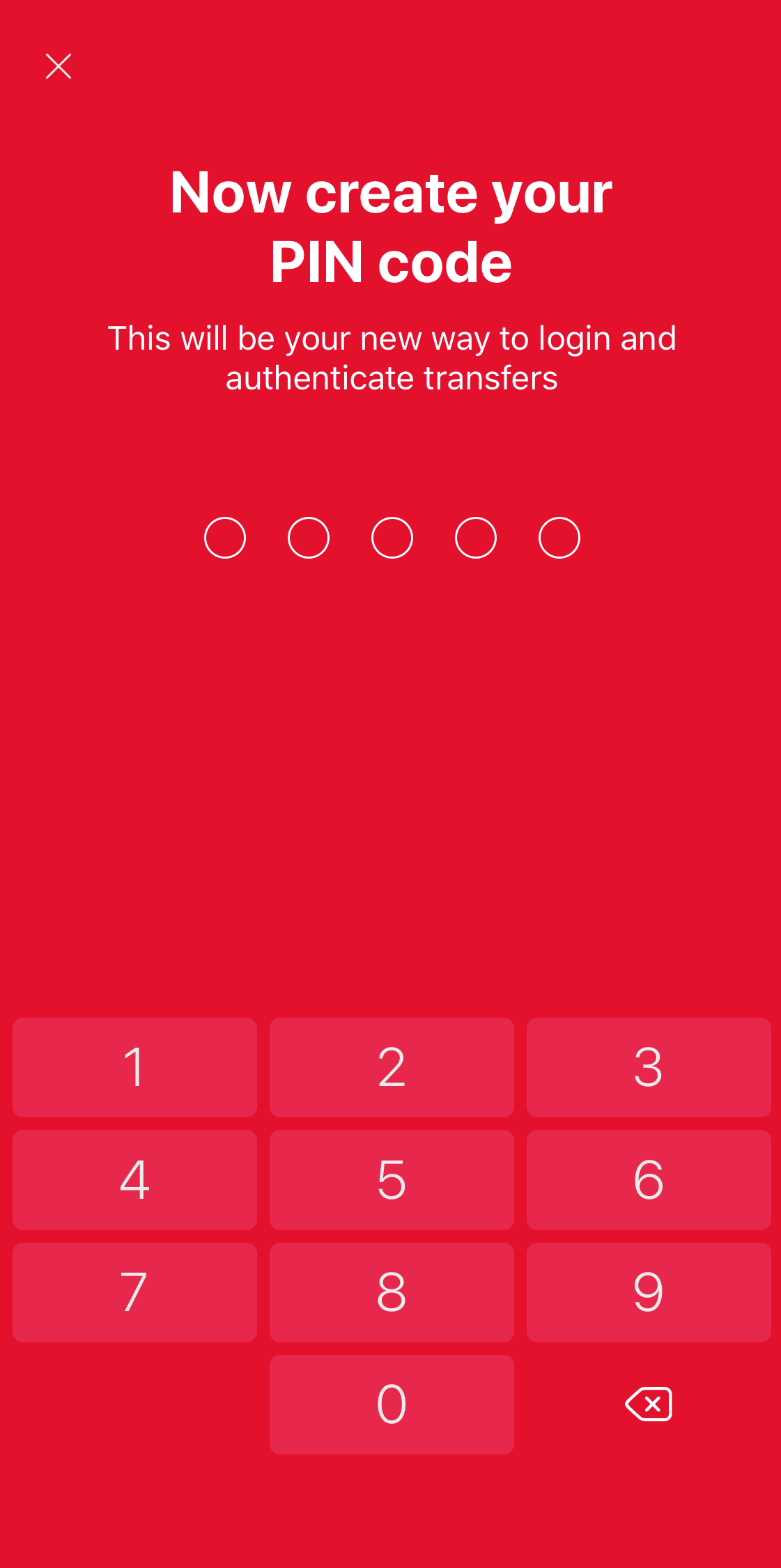
5. Next choose a 5-digit PIN code which you will use to log onto the the online bank or app and to authorise actions. You´ll have to re-enter the PIN again.
6. The screen of your device will show an activation code. This code must be entered to online bank in the MobileSCAN activation code field.
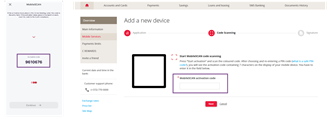
7. You will see authorisation screen in online bank. Authorise the action with the device that you used to log into online bank! After that, click Continue on your mobile device.
And your MobileSCAN is activated!
MobileSCAN limits can be increased:
Transaction limits