Skip to page content

Authentication and payment confirmation methods

It has never been this easy to access your online bank and confirm payments.

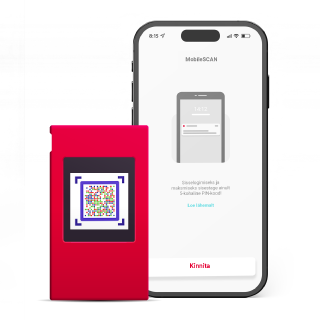
A mobile phone with Citadele app's MobileSCAN feature open, showing a QR code scanning screen. A red device with a colorful QR code is next to it.

MobileSCAN

Use if your smart device always is near by.

ID card and Mobile ID

Select device issued with government support.

Code calculators

Use these particularly secure authentication devices for various needs.

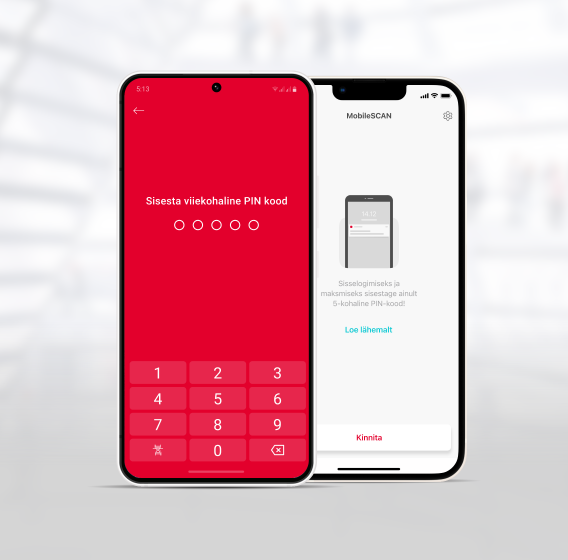
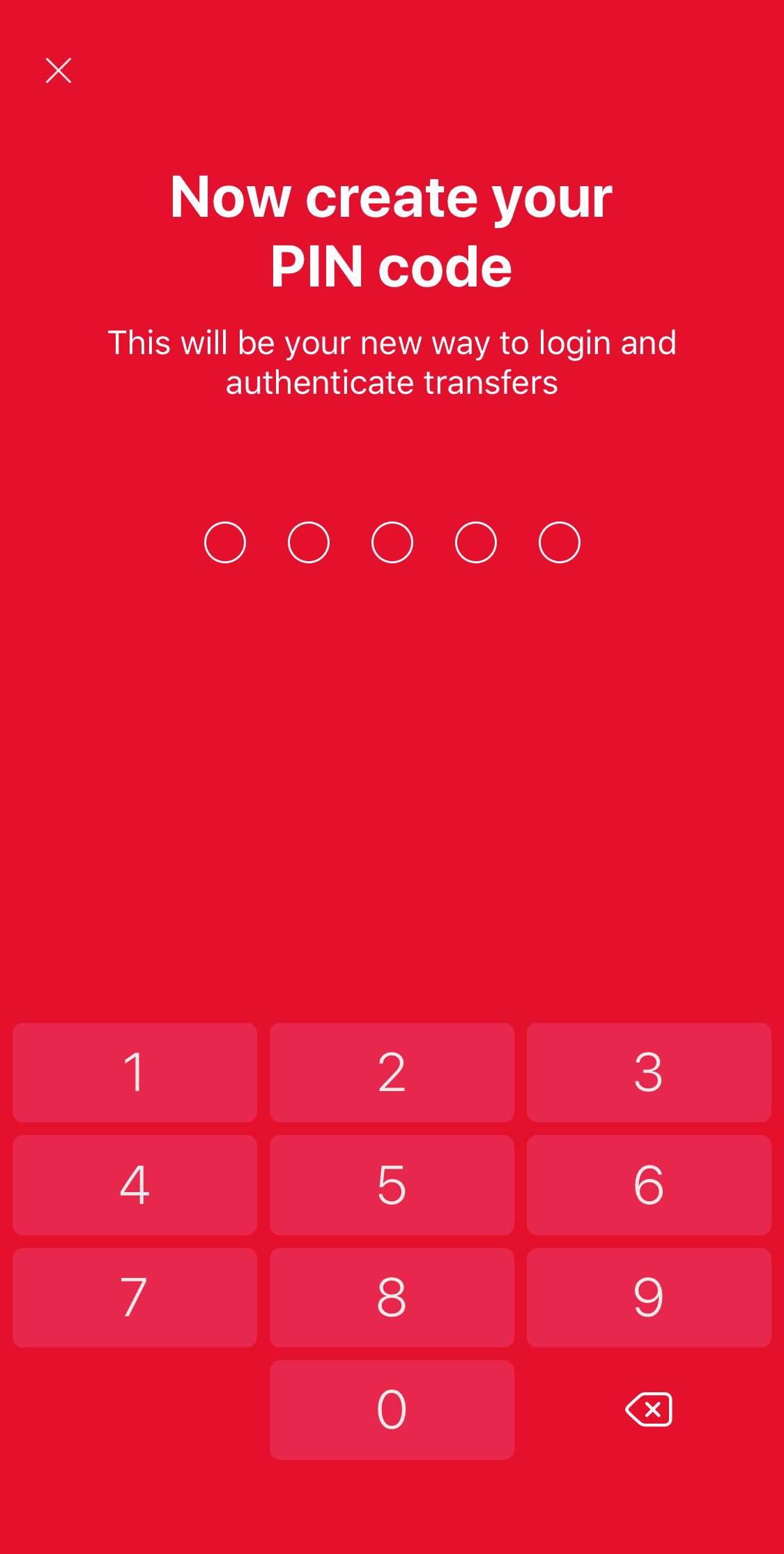
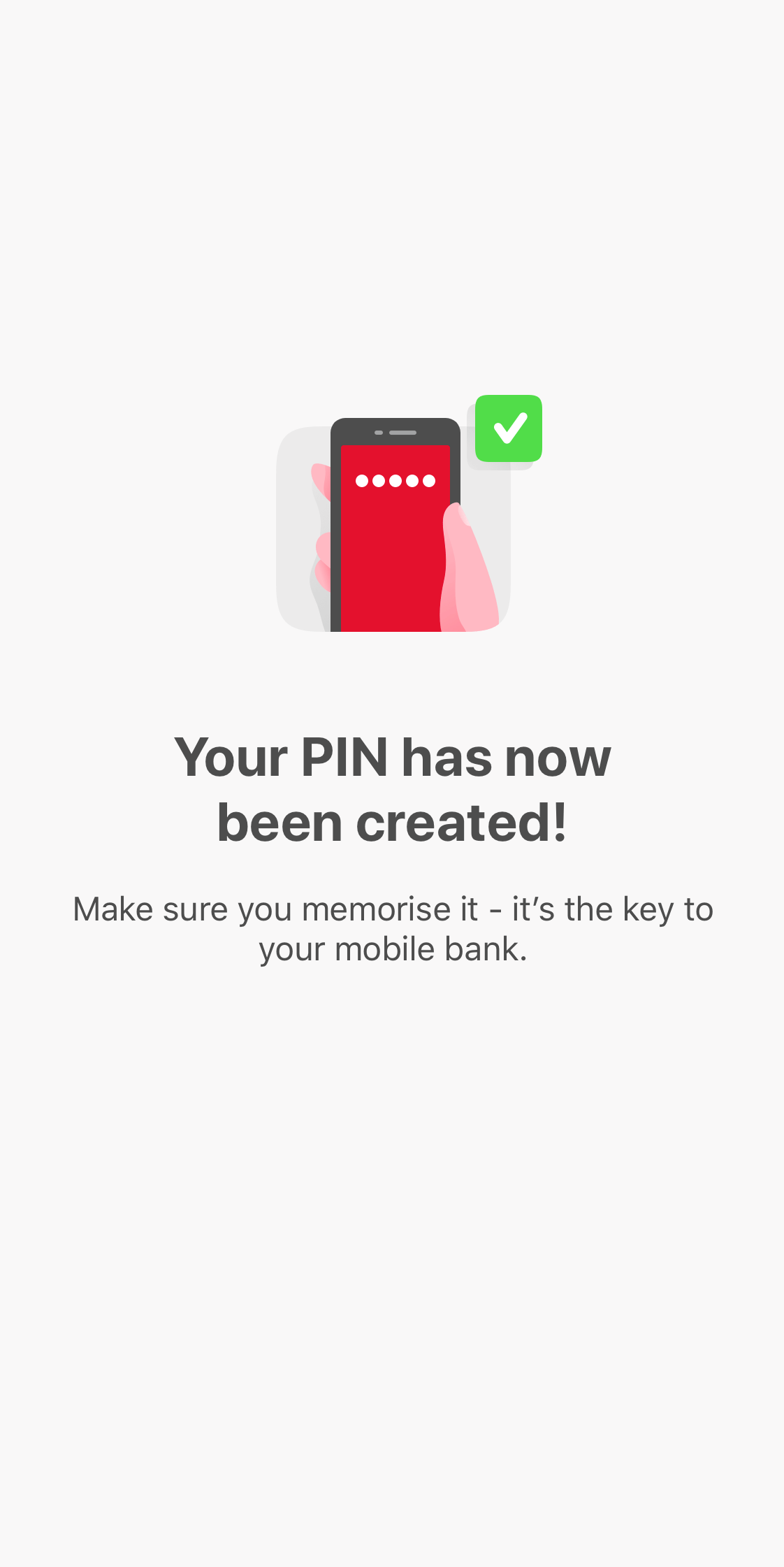
Two smartphone screens: PIN code entry on a red screen and a MobileSCAN QR code scanning illustration on a white screen.

MobileSCAN - for smart device users

  • Log in to the Citadele mobile app or online bank and confirm payments using your five-digit MobileSCAN code, Face ID or fingerprint.
  • Increase your payment limits at a Citadele branch office or connect MobileSCAN with PIN calculator.
  • Activate and use MobileSCAN for free.
  • Works on smartphones and tablets from Apple iOS 17 and up or 10.0 and up for Android.
  • Connect not only to the Citadele online bank or mobile application, but also to other e-service provider portals.
  • Securely approve payments or other transactions in Citadele online bank.
  • If you want to start using a Mobile ID, you must contact your mobile operator and enter into an electronic service agreement. Remember to have your passport or ID card with you.
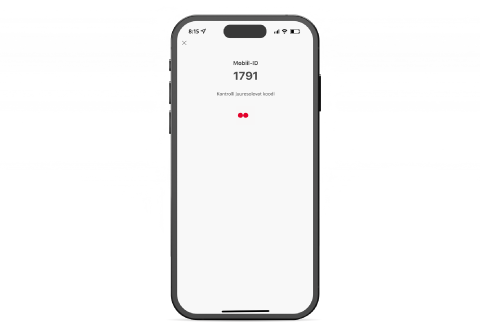
Mobile phone screen displaying Mobile-ID code with instructions to enter PIN code for action confirmation
  • Very secure and an easy way to perform payments or to enter the Online Bank.
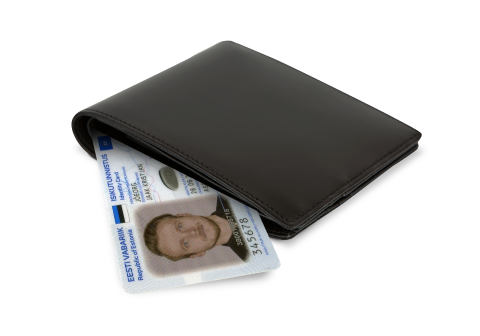
  • You will need your ID card with passwords and an ID card reader.
  • The corresponding ID card software must be installed on your computer.
A black leather wallet with a partially visible Estonian ID card featuring a blue stripe at the top and personal details.

Code calculators

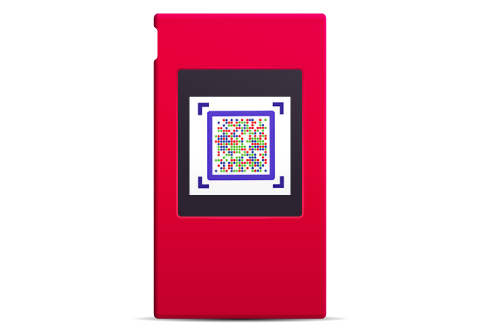
  • Digipass 780 uses a unique color-code (similar to MobileSCAN).
  • By scanning this code, the user is shown all transaction details and can immediately confirm it with a PIN code that only they know.
  • Payment limit: 30 million EUR per day.
  • Receiving Digipass 780 costs 35 Euros.
A red device with a colorful QR code is next to it.

Small, simple and more secure. The PIN calculator is suitable for clients who plan on making larger payments.

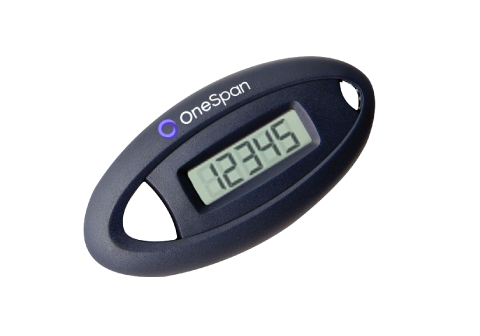
  • With the press of one button, it displays a unique, single-use 6-figure code which is valid for almost a minute.
  • Along with the random code generated by the code calculator, the user must also enter a code sent to them by SMS.
  • Works with a battery which lasts for up to 5 years.
  • Higher payment limits - 60 000 Euro per day.
  • The cost for receiving a PIN calculator is 15 Euros.
A code calculator displaying a unique numeric combination.

Need help?

Get instant answers to your questions 24/7 from our website help tool: our virtual financial consultant, Adele.

If you have forgotten your existing MobileSCAN PIN code, and you cannot log in to the Citadele app, you must disconnect and reactivate MobileSCAN in the app. The bank does not save your MobileSCAN PIN code anywhere, so we cannot remind you. To disconnect your existing MobileSCAN:

1. Open the app and click on MobileSCAN.

2. In the upper right hand part of the screen, click on the MobileSCAN settings icon.

3. Open device information and click on Disconnect this MobileSCAN device.

To reinstall MobileSCAN, if you have a private customer account with the bank, you can only activate MobileSCAN in the app:

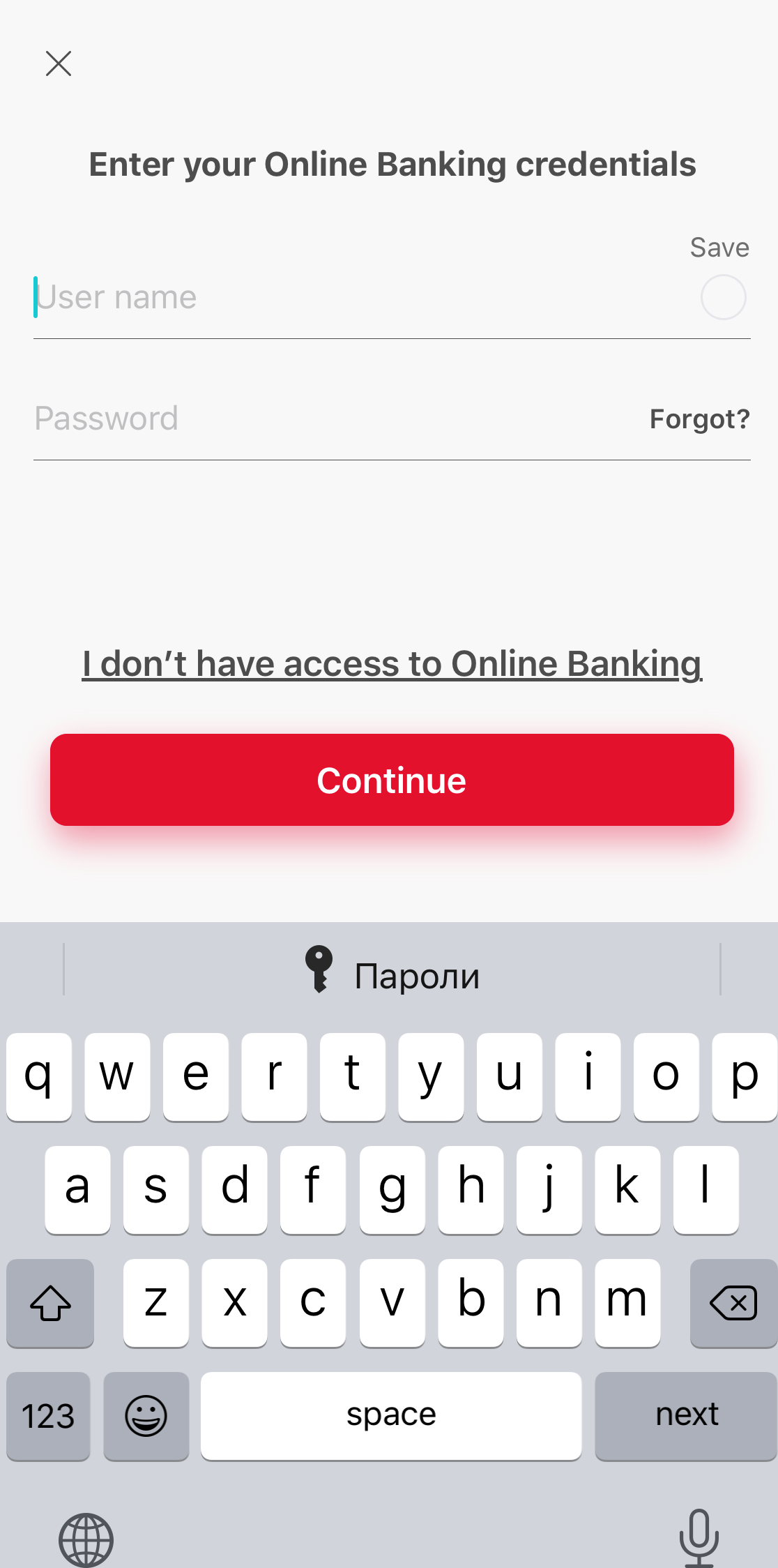
1. Click on Log In.

2. Enter your online bank username and password.

3. MobileSCAN activation will begin automatically.

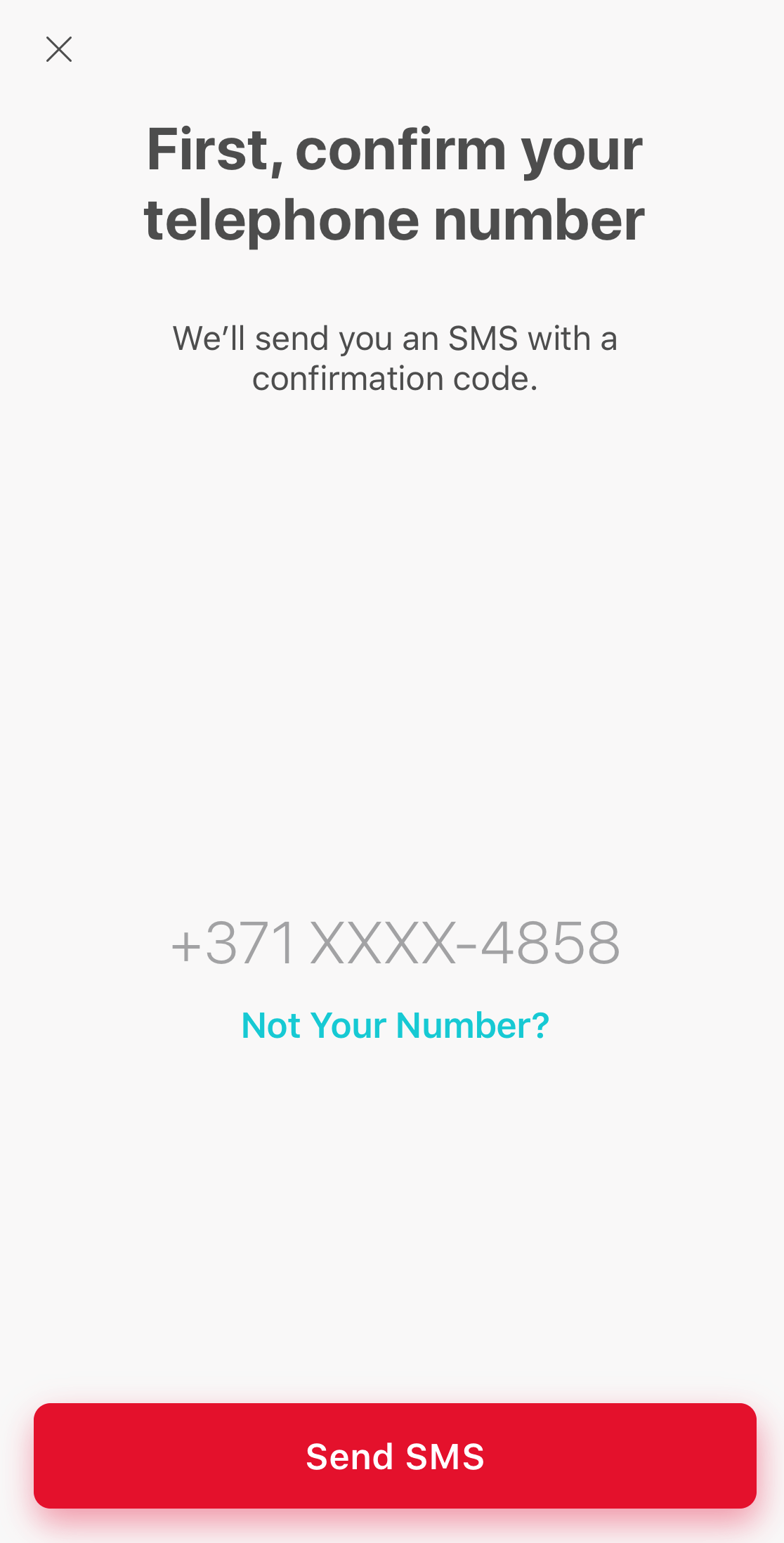
4. Ensure that this phone number is under your control and click Receive SMS.

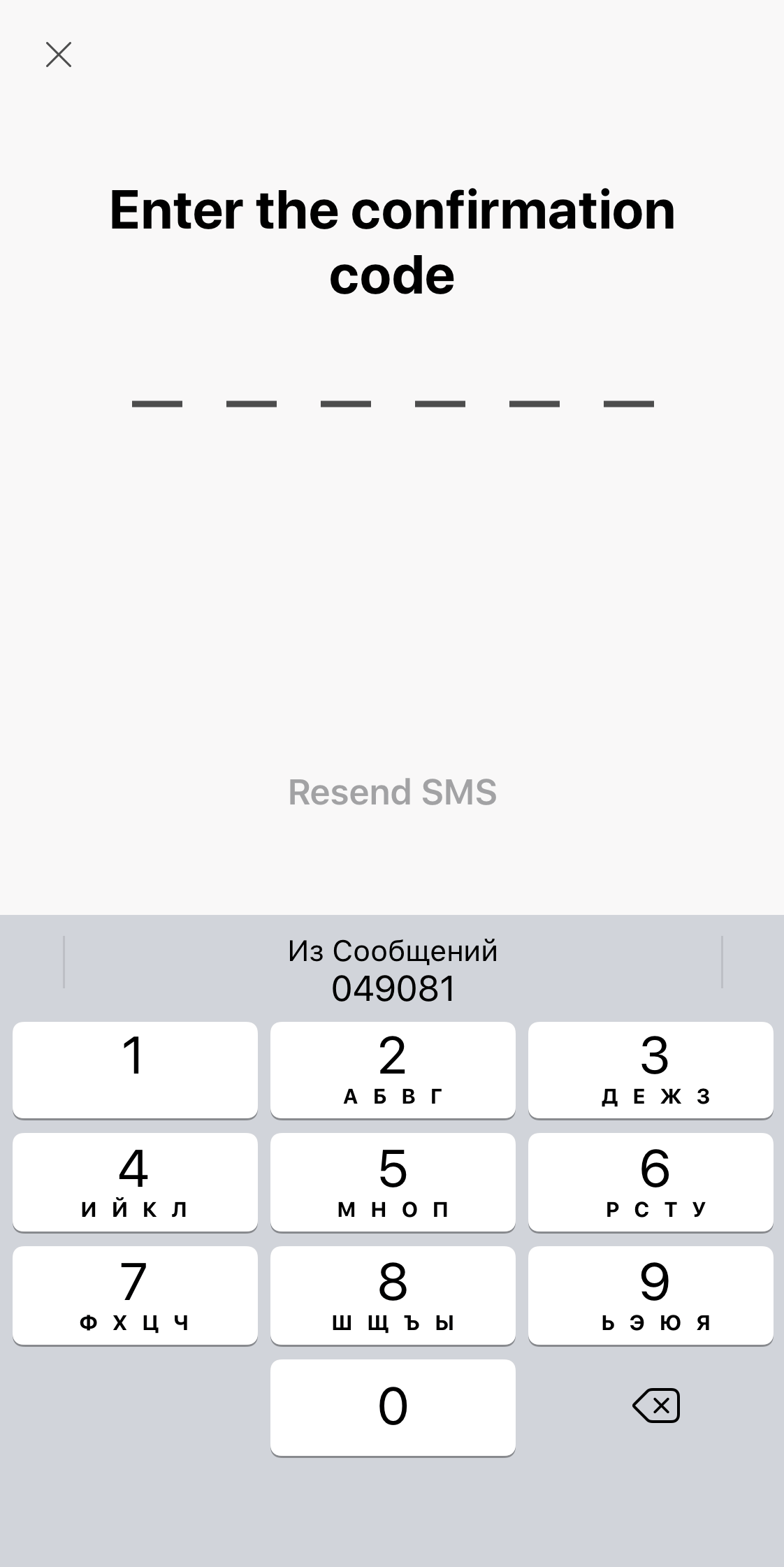
5. Enter the code you receive by SMS

6. Enter and confirm your new PIN code.

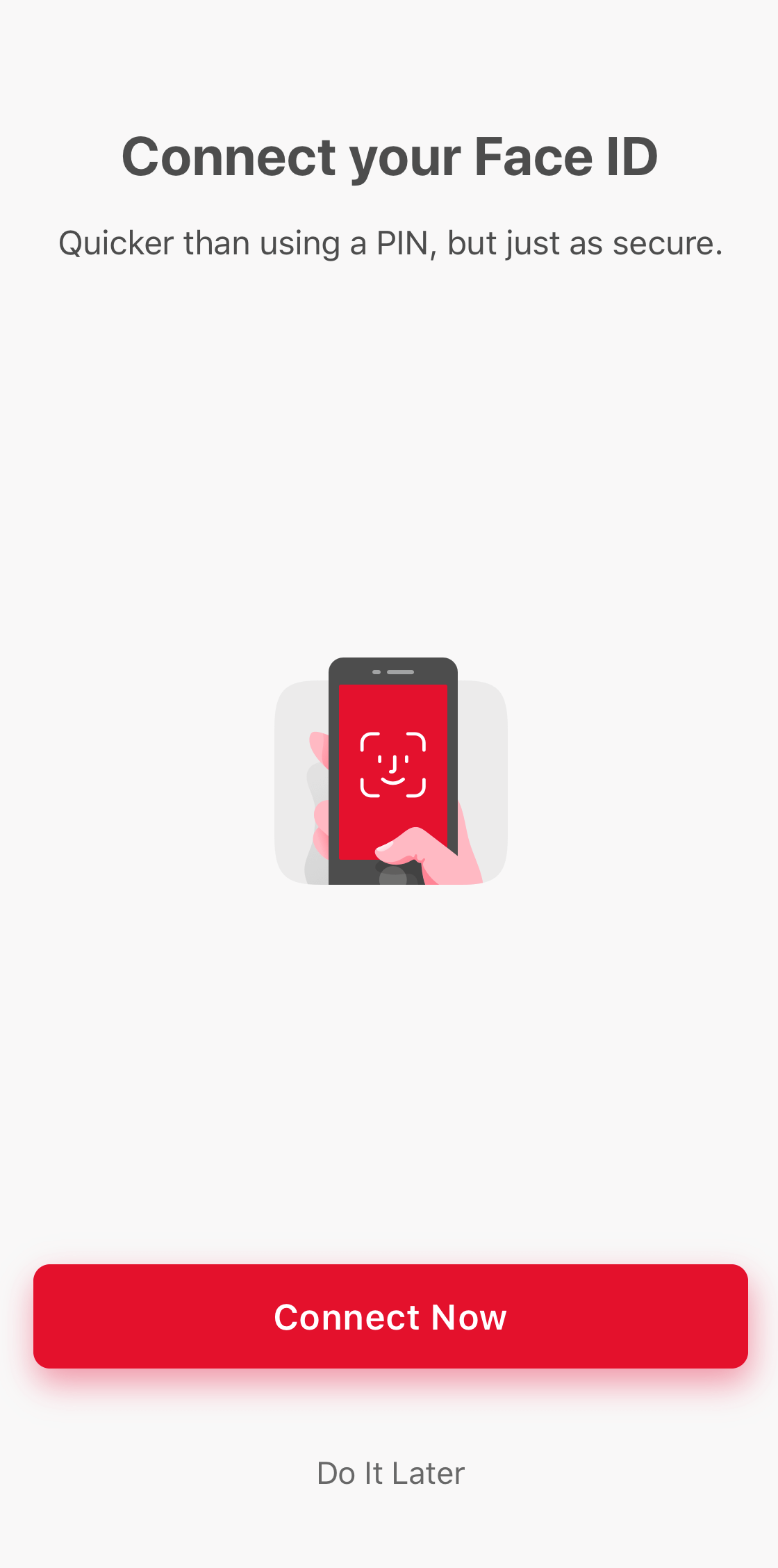
7. Activate the use of biometrics (fingerprint, facial recognition or iris), if your phone offers this, and you have activated the use of biometrics for unlocking your phone.

8. MobileSCAN has been activated!


Bear in mind that, if you reinstall MobileSCAN in the app, transaction limits will be 3000 EUR for one payment and 3000 EUR per day. If you wish to increase your transaction limits, you will have to visit a branch in person. 

Important! The limit for one payment on the app is 10 000 EUR, regardless of other MobileSCAN limits.

If you are acting on behalf of another person (you do not have your own Citadele account), then in order to reactivate MobileSCAN, you must visit a branch and bring your old MobileSCAN license.

You can reactivate MobileSCAN in online bank by following the instruction here or doing this straight in your mobile device!

If your app was transferred from your old device or reinstated from backup, you will have to delete it and reinstall from AppStore / Google Play.

To reactivate MobileSCAN in your phone app, you will need to verify yourself with a selfie and a personal ID document. First open the Citadele app and select Log in.

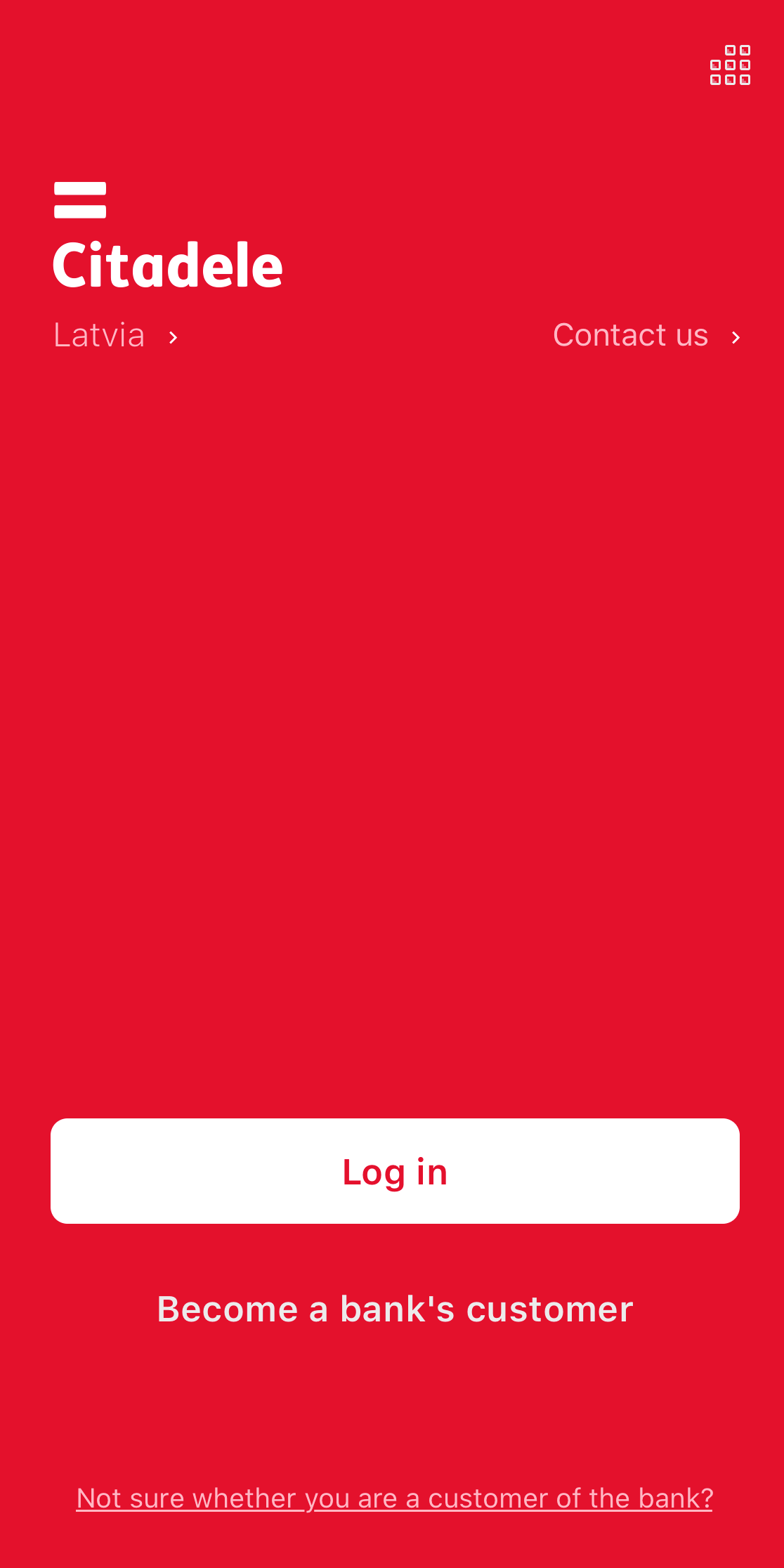
screenshot of the welcome screen in Citadele mobile app

Enter your username and personal code or phone number, and press Continue. If you can't remember your username, take a look here
Keep in mind that this phone number must match the number listed in your contact information. 

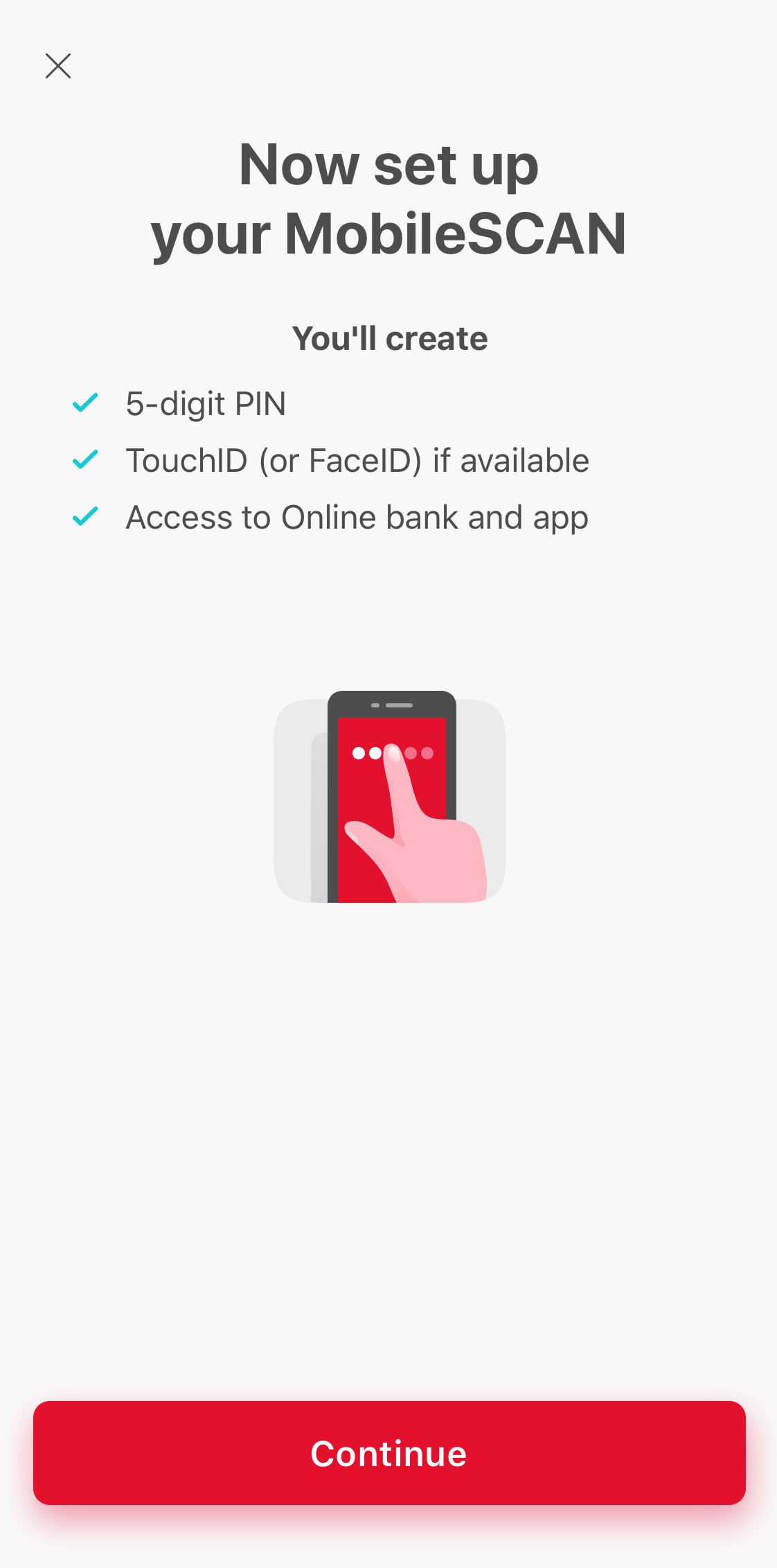
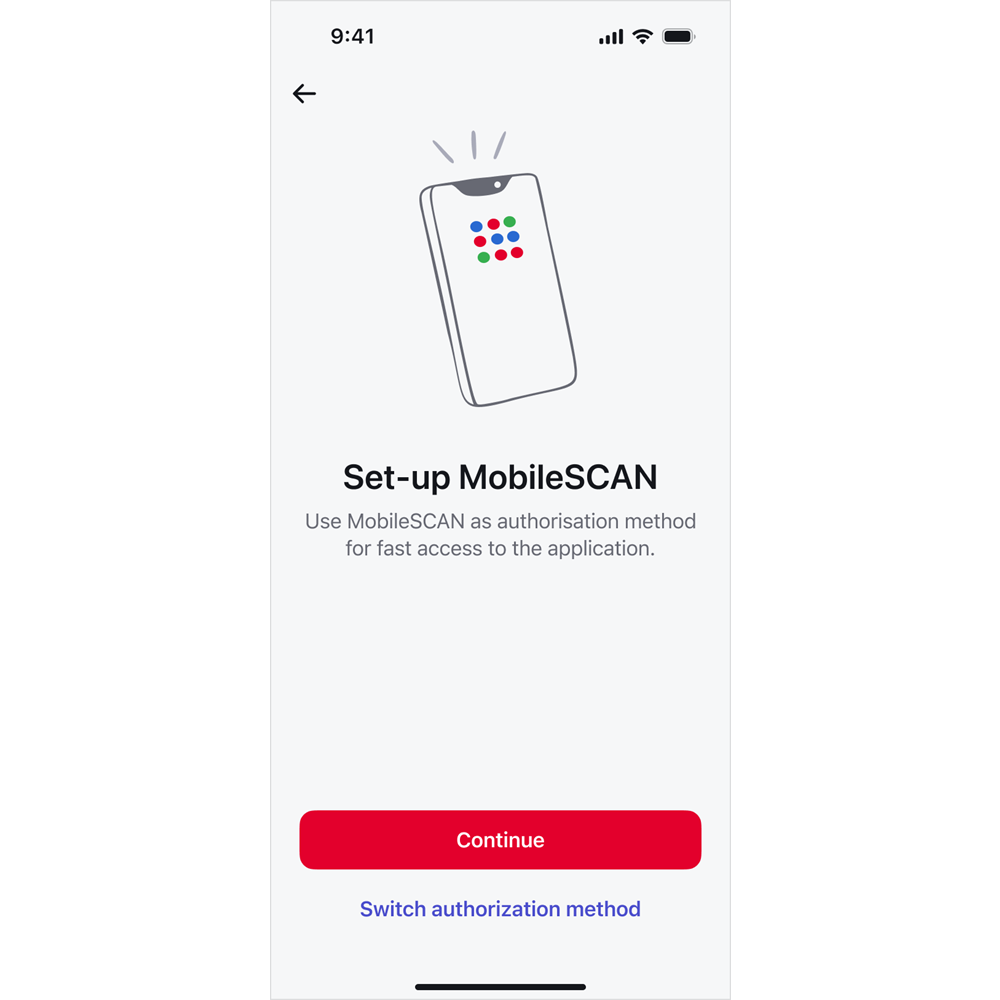
You will be taken to the MobileSCAN activation screen. Click on Continue. 

screenshot of the first MobileSCAN set-up screen in Citadele mobile app

Follow the steps in your phone and MobileSCAN will be ready to use. 

Please note that this functionality is available for app version 45.6 (or newer) for iOS or 45.5 (or newer) for Android.

If you are Citadele´s customer, one of the ways that you can obtain MobileSCAN license individually in your own Online bank. 

If you are just overseeing other customer´s accounts and you have not perviously used MobileSCAN, you should contact our customer support for further instructions. 

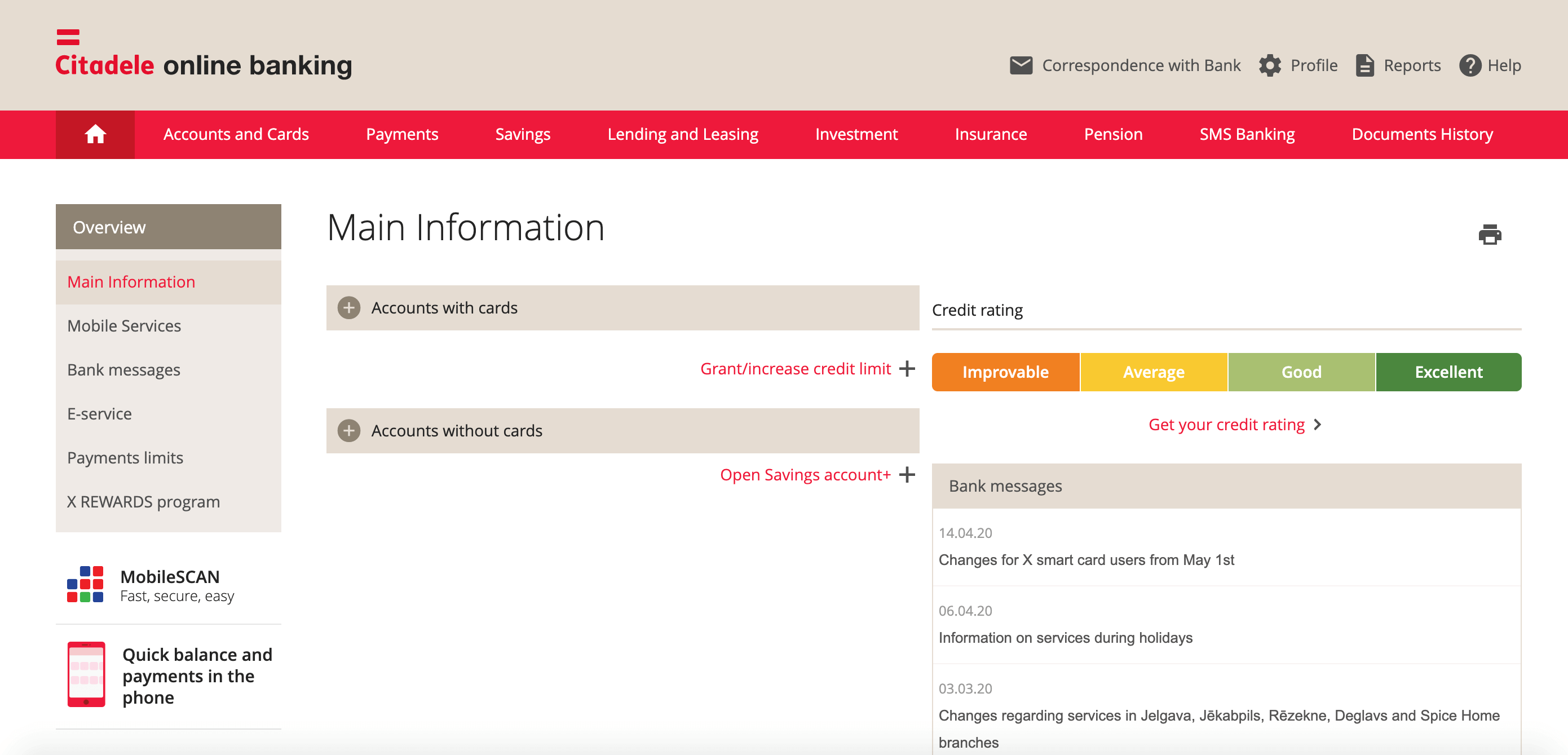
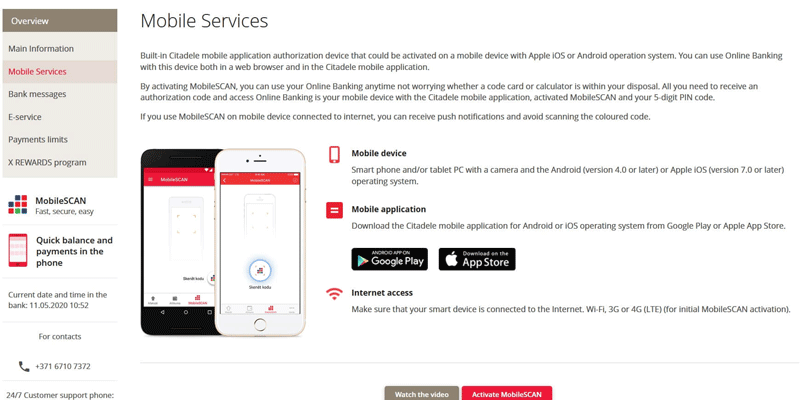
1. Log into the Citadele online bank Citadele online bank with any other available authorisation method, and on the left-hand side, choose Mobile Services.

Bear in mind that this is only available if you are the account holder!

2. Read the information displayed and click Activate MobileSCAN.

3. In parallel, take the mobile device for which you wish to activate MobileSCAN, open the Citadele app and click MobileSCAN on the welcome screen. You will see a screen from which you can begin activating MobileSCAN.

Make sure that you have reinstalled the application before starting the process! 

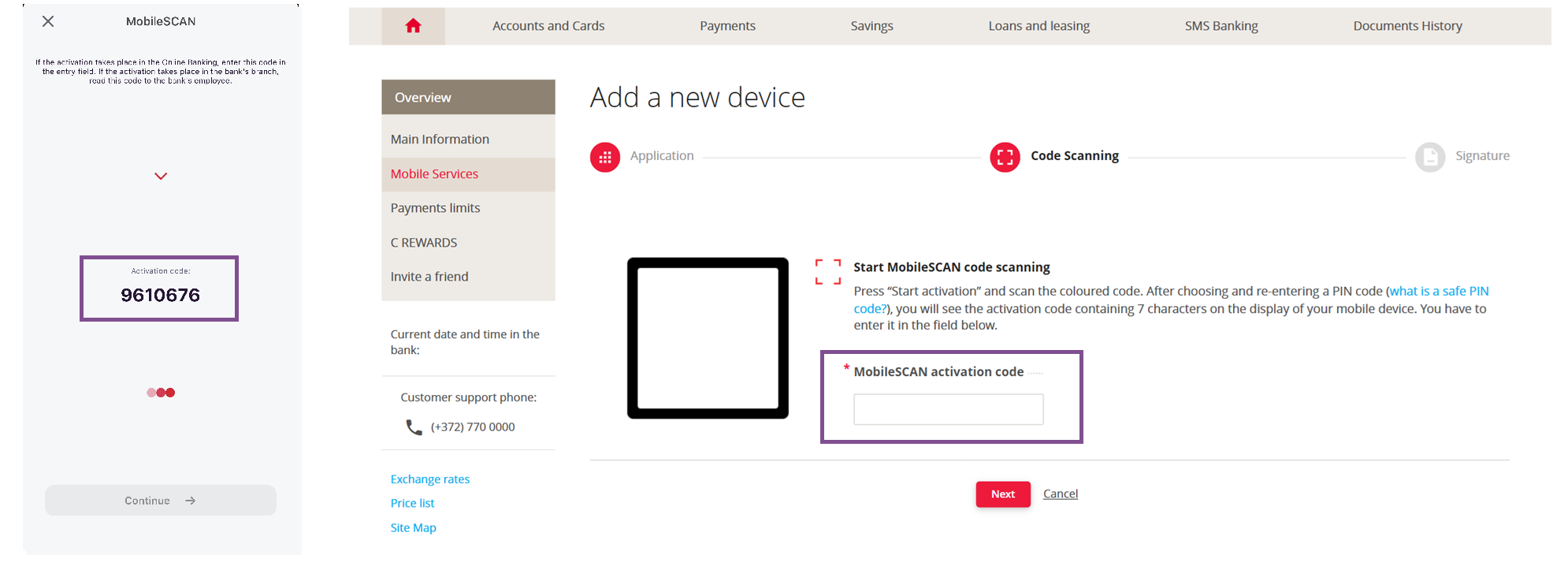
4. In the online bank, click Scan Code and use your phone to scan the colourful code from the online bank.

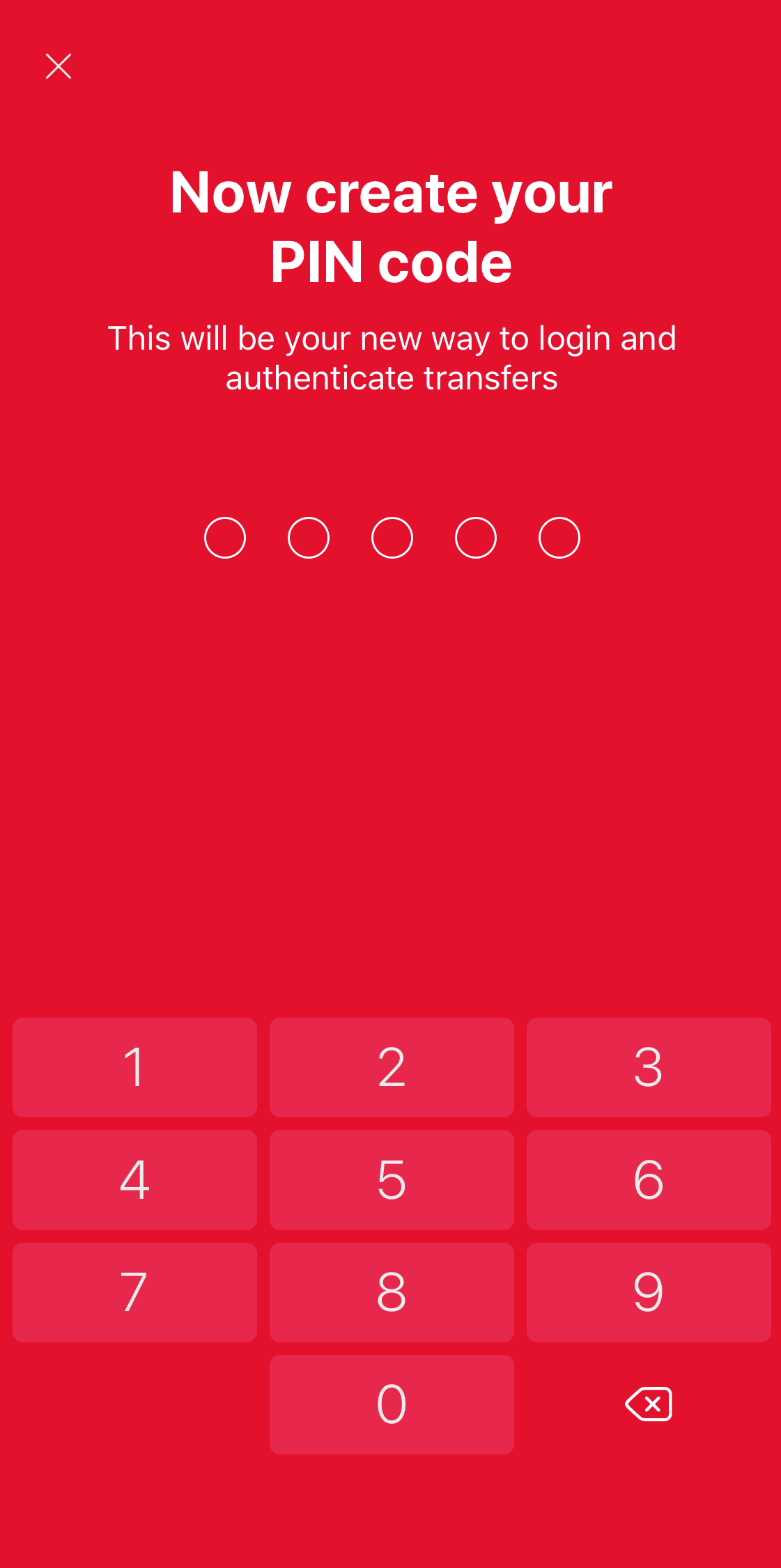
5. Next choose a 5-digit PIN code which you will use to log onto the the online bank or app and to authorise actions. You´ll have to re-enter the PIN again.

6. The screen of your device will show an activation code. This code must be entered to online bank in the MobileSCAN activation code field. 

7. You will see authorisation screen in online bank. Authorise the action with the device that you used to log into online bank! After that, click Continue on your mobile device.

And your MobileSCAN is activated!

MobileSCAN limits can be increased:

Transaction limits

For us to consider increasing your MobileSCAN limits remotely, there are two things you must do: 

1.Submit an application. 
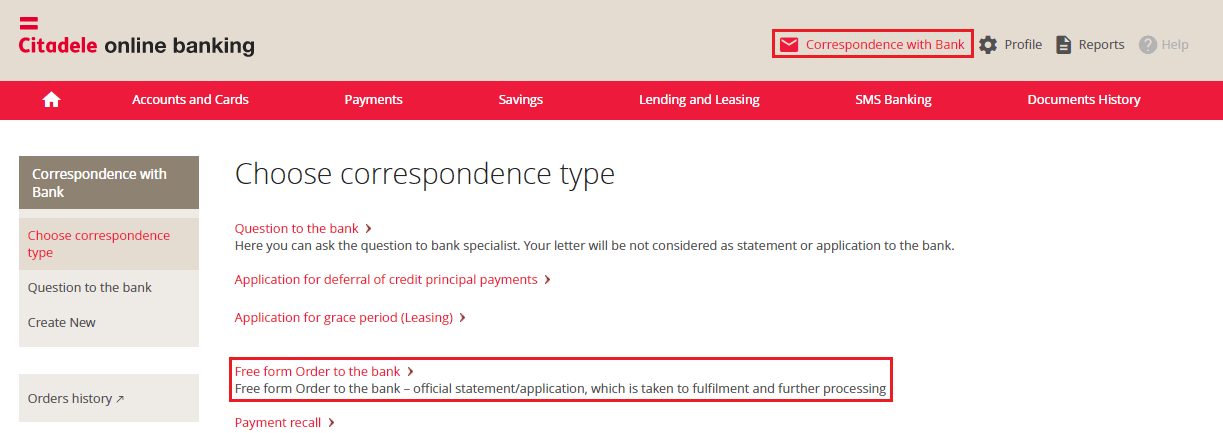
To do this, log in to the full version of online banking (through our website), and under Correspondence with Bank select Free form Order to the Bank.

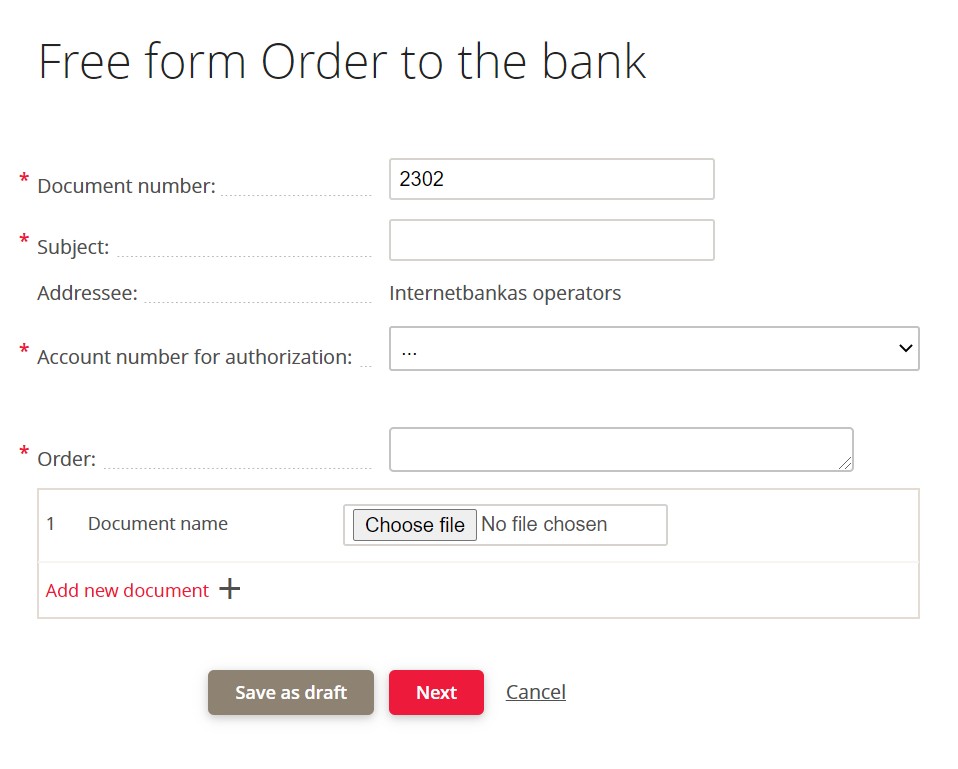
Fill in the following sections: 

  • Subject: Increasing MobileSCAN limits
  • Account number for authorisation: select any of your accounts from the list
  • Order: Fill in the text using this template: Please remotely increase my MobileSCAN limits, because … (describe the reason) 

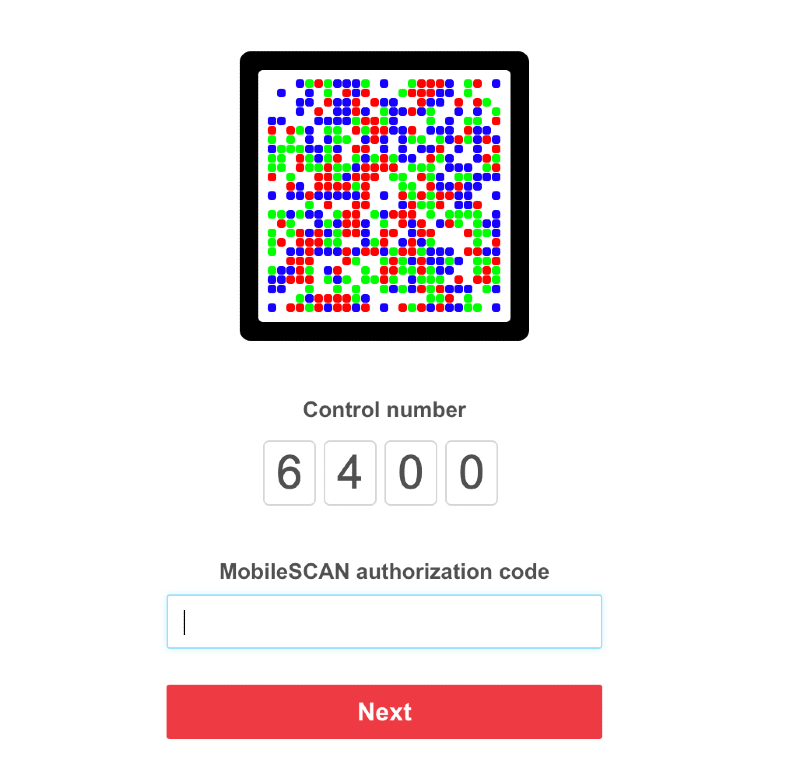
Select Next and sign the order using a code from your authorisation device. 
You can check whether it has been successfully submitted to the bank in your Order History; you will see a “P” next to your order, which means that your application is being processed. 

2.Call the bank at 77 00 000 and inform the operator that you have submitted an application to increase your MobileSCAN limit.

Be ready to identify yourself over the phone. 

Log in to the Citadele app using MobileSCAN. Click on the profile icon on the top right corner and choose Change MobileSCAN PIN.

Follow the instructions that appear in the app 

1. Enter your existing MobileSCAN code.
2. Enter your new MobileSCAN code. 
3. Enter your new MobileSCAN code again.

Your MobileSCAN code has been changed. 
 

If you have forgotten your existing MobileSCAN PIN code, and you cannot log in to the Citadele app, you must disconnect and reactivate MobileSCAN in the app. The bank does not save your MobileSCAN PIN code anywhere, so we cannot remind you. To disconnect your existing MobileSCAN:

1. Open the app and click on MobileSCAN.

2. In the upper right hand part of the screen, click on the MobileSCAN settings icon.

3. Open device information and click on Disconnect this MobileSCAN device.

To reinstall MobileSCAN, if you have a private customer account with the bank, you can only activate MobileSCAN in the app:

1. Click on Log In.

2. Enter your online bank username and password.

3. MobileSCAN activation will begin automatically.

4. Ensure that this phone number is under your control and click Receive SMS.

5. Enter the code you receive by SMS

6. Enter and confirm your new PIN code.

7. Activate the use of biometrics (fingerprint, facial recognition or iris), if your phone offers this, and you have activated the use of biometrics for unlocking your phone.

8. MobileSCAN has been activated!


Bear in mind that, if you reinstall MobileSCAN in the app, transaction limits will be 3000 EUR for one payment and 3000 EUR per day. If you wish to increase your transaction limits, you will have to visit a branch in person. 

Important! The limit for one payment on the app is 10 000 EUR, regardless of other MobileSCAN limits.

If you are acting on behalf of another person (you do not have your own Citadele account), then in order to reactivate MobileSCAN, you must visit a branch and bring your old MobileSCAN license.

You can reactivate MobileSCAN in online bank by following the instruction here or doing this straight in your mobile device!

If your app was transferred from your old device or reinstated from backup, you will have to delete it and reinstall from AppStore / Google Play.

To reactivate MobileSCAN in your phone app, you will need to verify yourself with a selfie and a personal ID document. First open the Citadele app and select Log in.

screenshot of the welcome screen in Citadele mobile app

Enter your username and personal code or phone number, and press Continue. If you can't remember your username, take a look here
Keep in mind that this phone number must match the number listed in your contact information. 

You will be taken to the MobileSCAN activation screen. Click on Continue. 

screenshot of the first MobileSCAN set-up screen in Citadele mobile app

Follow the steps in your phone and MobileSCAN will be ready to use. 

Please note that this functionality is available for app version 45.6 (or newer) for iOS or 45.5 (or newer) for Android.

If you are Citadele´s customer, one of the ways that you can obtain MobileSCAN license individually in your own Online bank. 

If you are just overseeing other customer´s accounts and you have not perviously used MobileSCAN, you should contact our customer support for further instructions. 

1. Log into the Citadele online bank Citadele online bank with any other available authorisation method, and on the left-hand side, choose Mobile Services.

Bear in mind that this is only available if you are the account holder!

2. Read the information displayed and click Activate MobileSCAN.

3. In parallel, take the mobile device for which you wish to activate MobileSCAN, open the Citadele app and click MobileSCAN on the welcome screen. You will see a screen from which you can begin activating MobileSCAN.

Make sure that you have reinstalled the application before starting the process! 

4. In the online bank, click Scan Code and use your phone to scan the colourful code from the online bank.

5. Next choose a 5-digit PIN code which you will use to log onto the the online bank or app and to authorise actions. You´ll have to re-enter the PIN again.

6. The screen of your device will show an activation code. This code must be entered to online bank in the MobileSCAN activation code field. 

7. You will see authorisation screen in online bank. Authorise the action with the device that you used to log into online bank! After that, click Continue on your mobile device.

And your MobileSCAN is activated!

MobileSCAN limits can be increased:

Transaction limits

For us to consider increasing your MobileSCAN limits remotely, there are two things you must do: 

1.Submit an application. 
To do this, log in to the full version of online banking (through our website), and under Correspondence with Bank select Free form Order to the Bank.

Fill in the following sections: 

  • Subject: Increasing MobileSCAN limits
  • Account number for authorisation: select any of your accounts from the list
  • Order: Fill in the text using this template: Please remotely increase my MobileSCAN limits, because … (describe the reason) 

Select Next and sign the order using a code from your authorisation device. 
You can check whether it has been successfully submitted to the bank in your Order History; you will see a “P” next to your order, which means that your application is being processed. 

2.Call the bank at 77 00 000 and inform the operator that you have submitted an application to increase your MobileSCAN limit.

Be ready to identify yourself over the phone. 

Log in to the Citadele app using MobileSCAN. Click on the profile icon on the top right corner and choose Change MobileSCAN PIN.

Follow the instructions that appear in the app 

1. Enter your existing MobileSCAN code.
2. Enter your new MobileSCAN code. 
3. Enter your new MobileSCAN code again.

Your MobileSCAN code has been changed. 
 

More opportunities

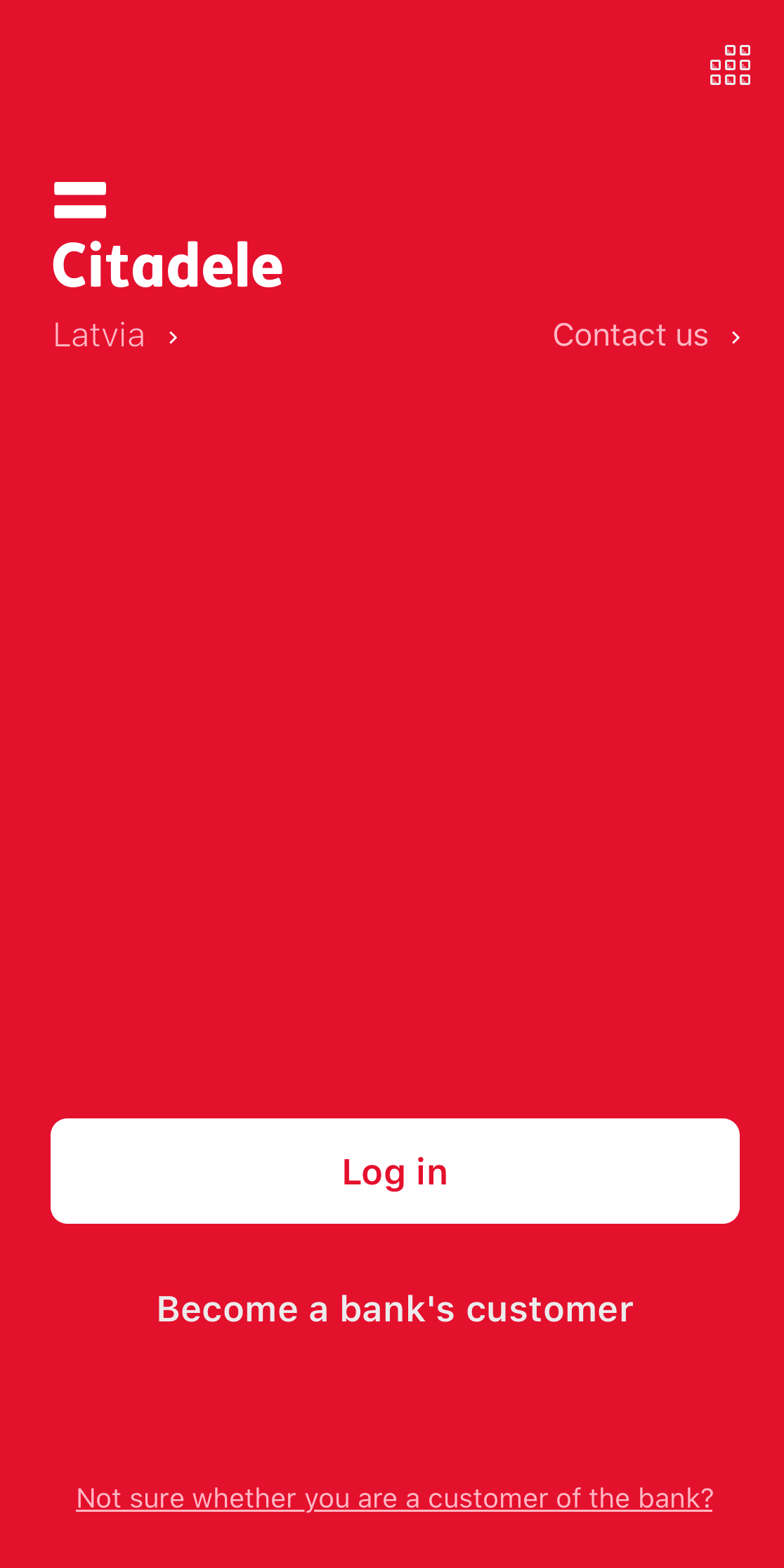
Mobile phone screen displaying the Citadele mobile app login view.

Mobile app

Use the bank’s services at a time and place convenient to you. Confirm payments using your face or fingerprint.
Find out more
A laptop with Citadele online bank open. The screen displays the Basic Information section.

Online bank

A convenient and secure method of managing your finances, applying for various loans or signing agreements for your chosen products.
Find out more
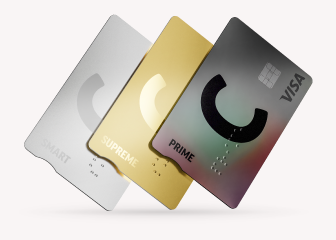
Three Citadele payment cards: C prime (gray with a rainbow shimmer), C supreme (gold), and C smart (silver), layered on top of each other.

C cards

Free money transfers within Europe and free cash withdrawals from ATMs worldwide. C REWARDS prizes and discounts.
Find out more