Skip to page content

ONLINE BANK FOR BUSINESSES

Manage the finances of your business easily and securely.

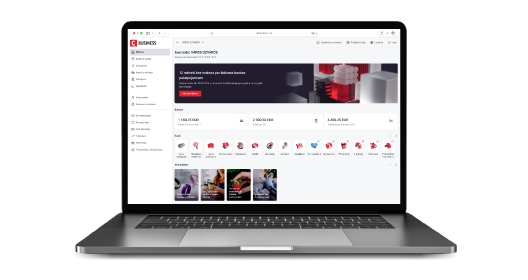
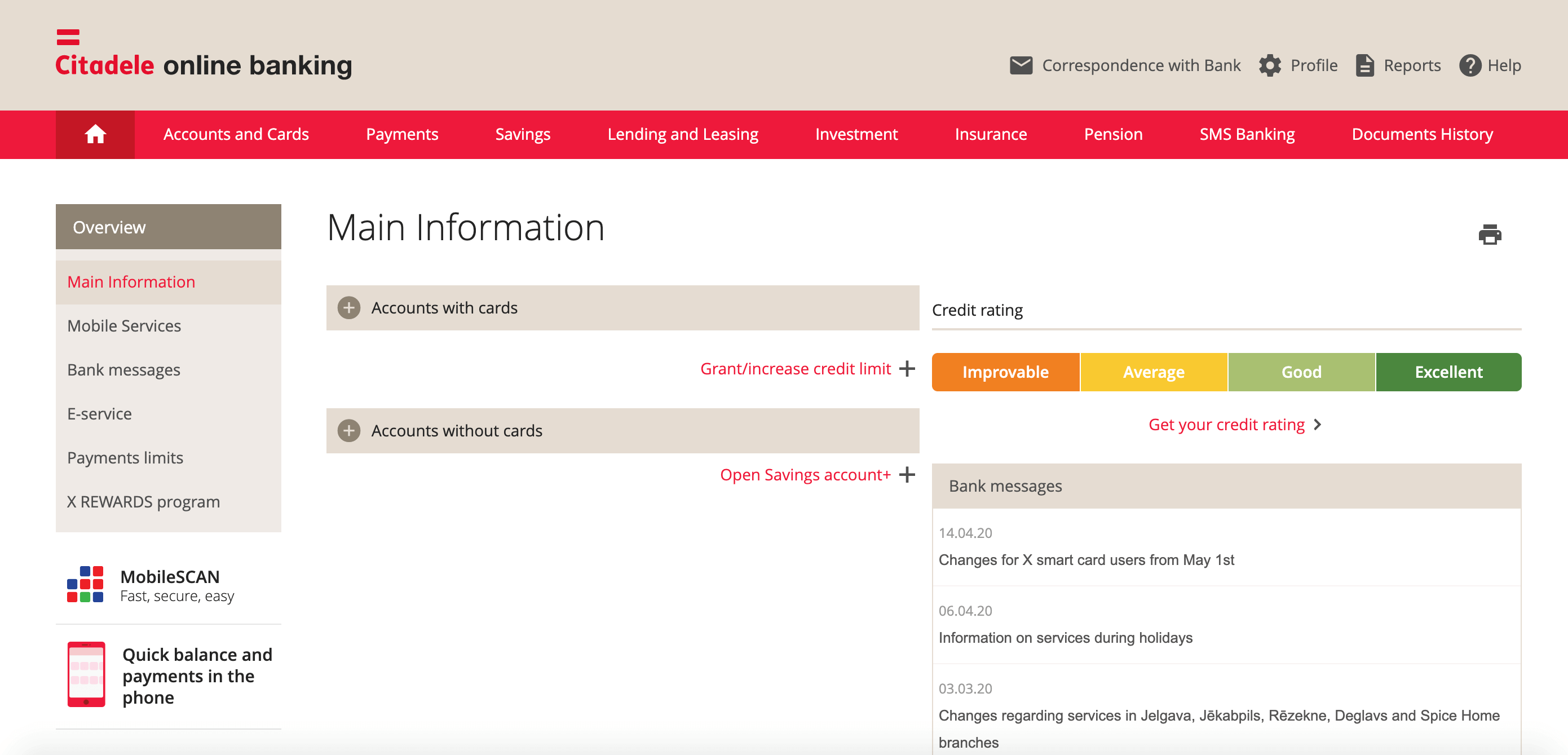
A laptop with Citadele online bank open. The screen displays the Basic Information section.

Convenient management

See all your business accounts and balances in one place.

Wide range of payment options

Make transfers and pay bills.

List of payments

Prepare lists in your accounting system and upload them to the online bank.

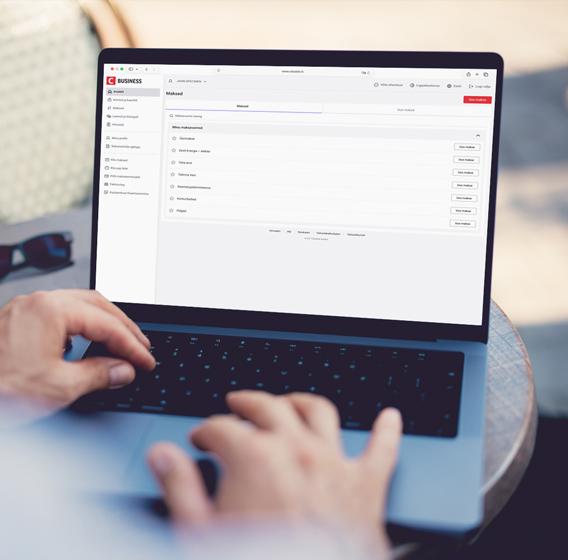
A woman is holding a laptop in her lap, with the payment section of Citadele's online bank displayed on the screen.

Available actions

  • Make payments and create payment lists by inputting account numbers from countries worldwide.
  • Import payments from your accounting system (we support ISO and Fidavista). Upload as many payments as you wish into one file, and make from 50 to 500 transactions simultaneously, depending on your authorisation device.
  • Create account groups and see balances and turnover in a consolidated format.
  • Set authorisation categories for online bank determining access rights for each user.
  • Order business payment cards.
  • Salary payment register.

Online shopping

  • Pay online for goods and services from your business account.
  • If you have your own online store, set up our e-commerce tool and give customers the opportunity to pay for goods and services using the online bank or mobile app.

Need help?

Get instant answers to your questions 24/7 from our website help tool: our virtual financial consultant, Adele.

If you have forgotten your existing MobileSCAN PIN code, and you cannot log in to the Citadele app, you must disconnect and reactivate MobileSCAN in the app. The bank does not save your MobileSCAN PIN code anywhere, so we cannot remind you. To disconnect your existing MobileSCAN:

1. Open the app and click on MobileSCAN.

2. In the upper right hand part of the screen, click on the MobileSCAN settings icon.

3. Open device information and click on Disconnect this MobileSCAN device.

To reinstall MobileSCAN, if you have a private customer account with the bank, you can only activate MobileSCAN in the app:

1. Click on Log In.

2. Enter your online bank username and password.

3. MobileSCAN activation will begin automatically.

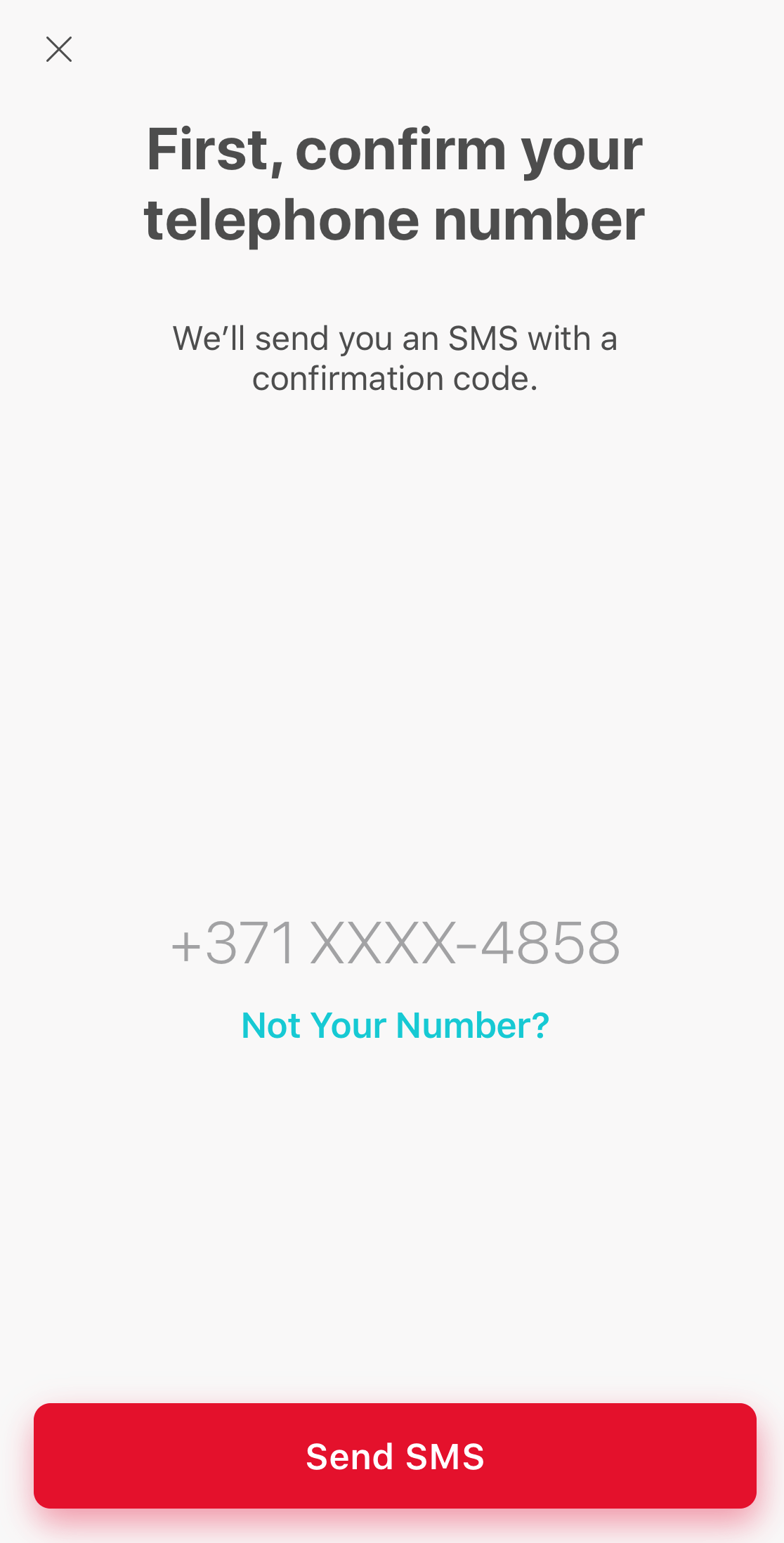
4. Ensure that this phone number is under your control and click Receive SMS.

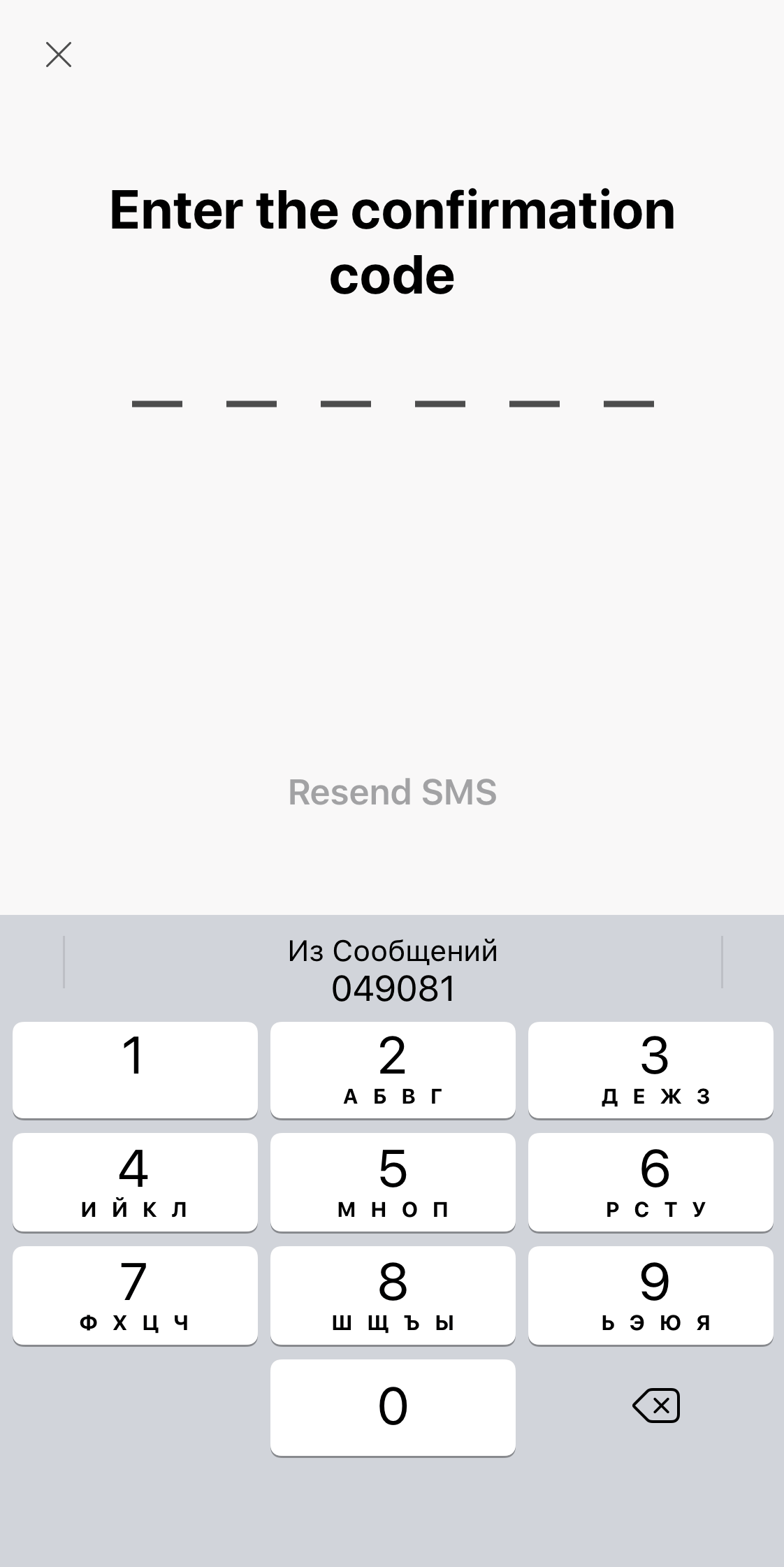
5. Enter the code you receive by SMS

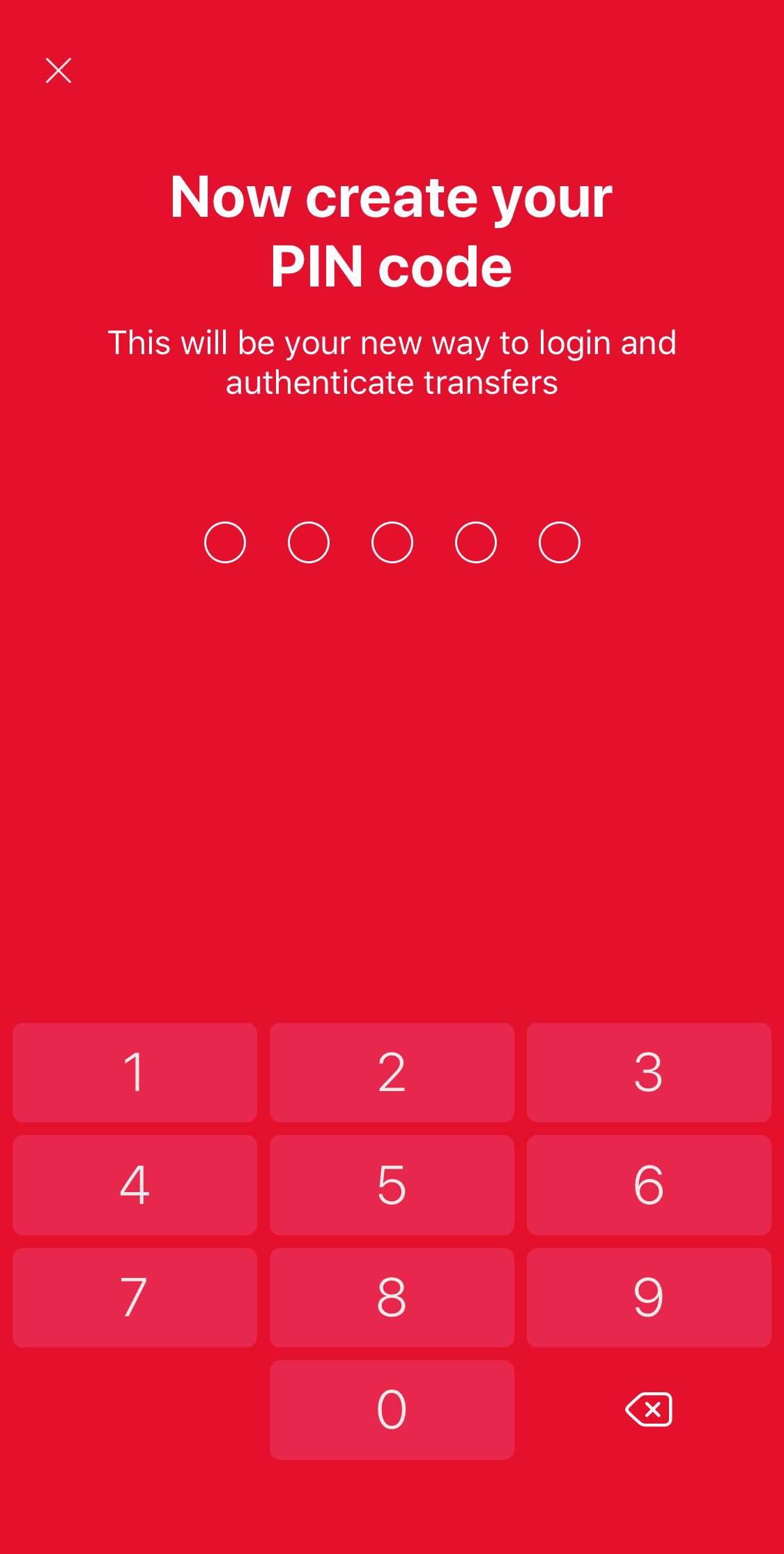
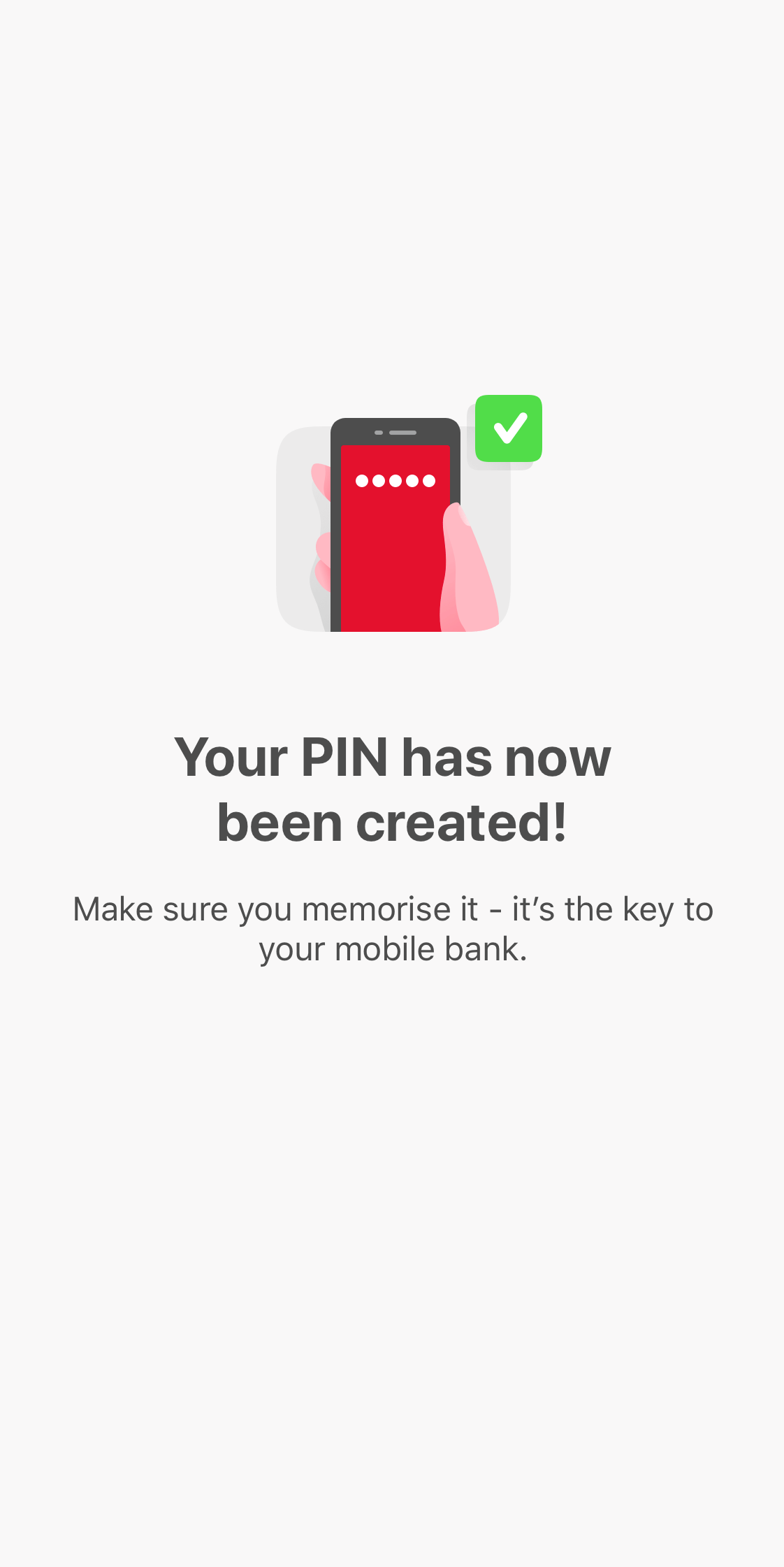
6. Enter and confirm your new PIN code.

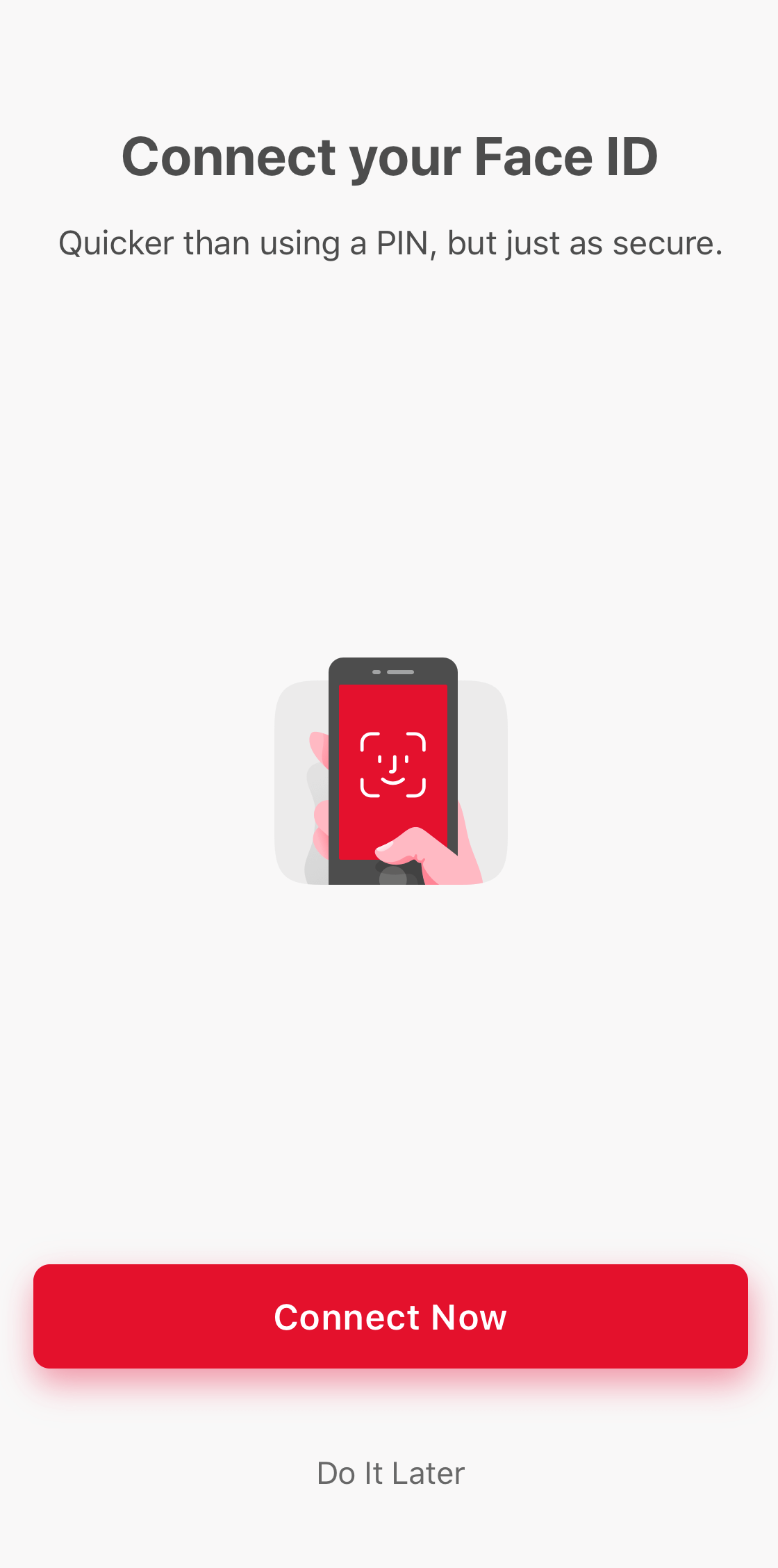
7. Activate the use of biometrics (fingerprint, facial recognition or iris), if your phone offers this, and you have activated the use of biometrics for unlocking your phone.

8. MobileSCAN has been activated!


Bear in mind that, if you reinstall MobileSCAN in the app, transaction limits will be 3000 EUR for one payment and 3000 EUR per day. If you wish to increase your transaction limits, you will have to visit a branch in person. 

Important! The limit for one payment on the app is 10 000 EUR, regardless of other MobileSCAN limits.

If you are acting on behalf of another person (you do not have your own Citadele account), then in order to reactivate MobileSCAN, you must visit a branch and bring your old MobileSCAN license.

You can reactivate MobileSCAN in online bank by following the instruction here or doing this straight in your mobile device!

If your app was transferred from your old device or reinstated from backup, you will have to delete it and reinstall from AppStore / Google Play.

To reactivate MobileSCAN in your phone app, you will need to verify yourself with a selfie and a personal ID document. First open the Citadele app and select Log in.

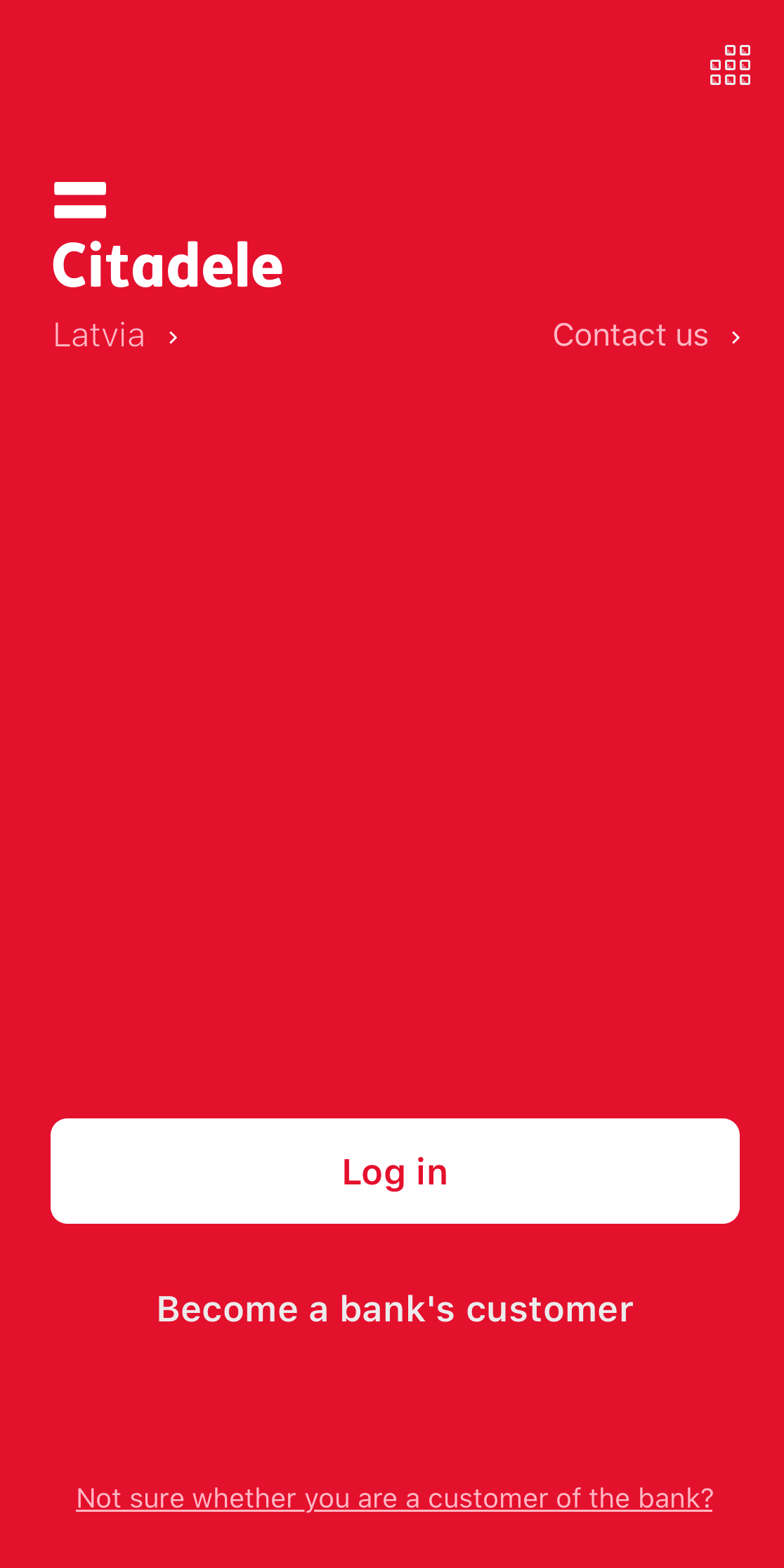
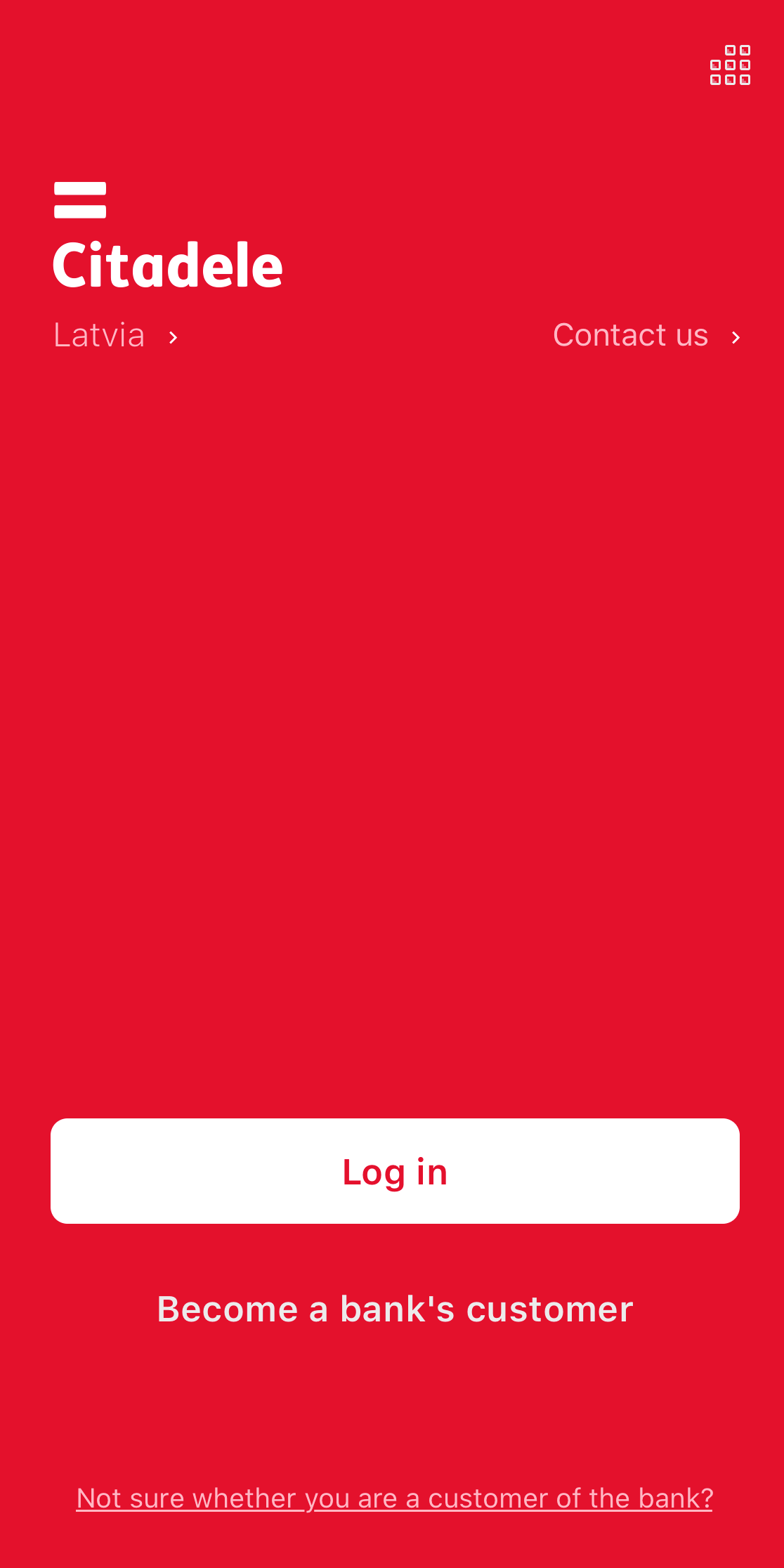
screenshot of the welcome screen in Citadele mobile app

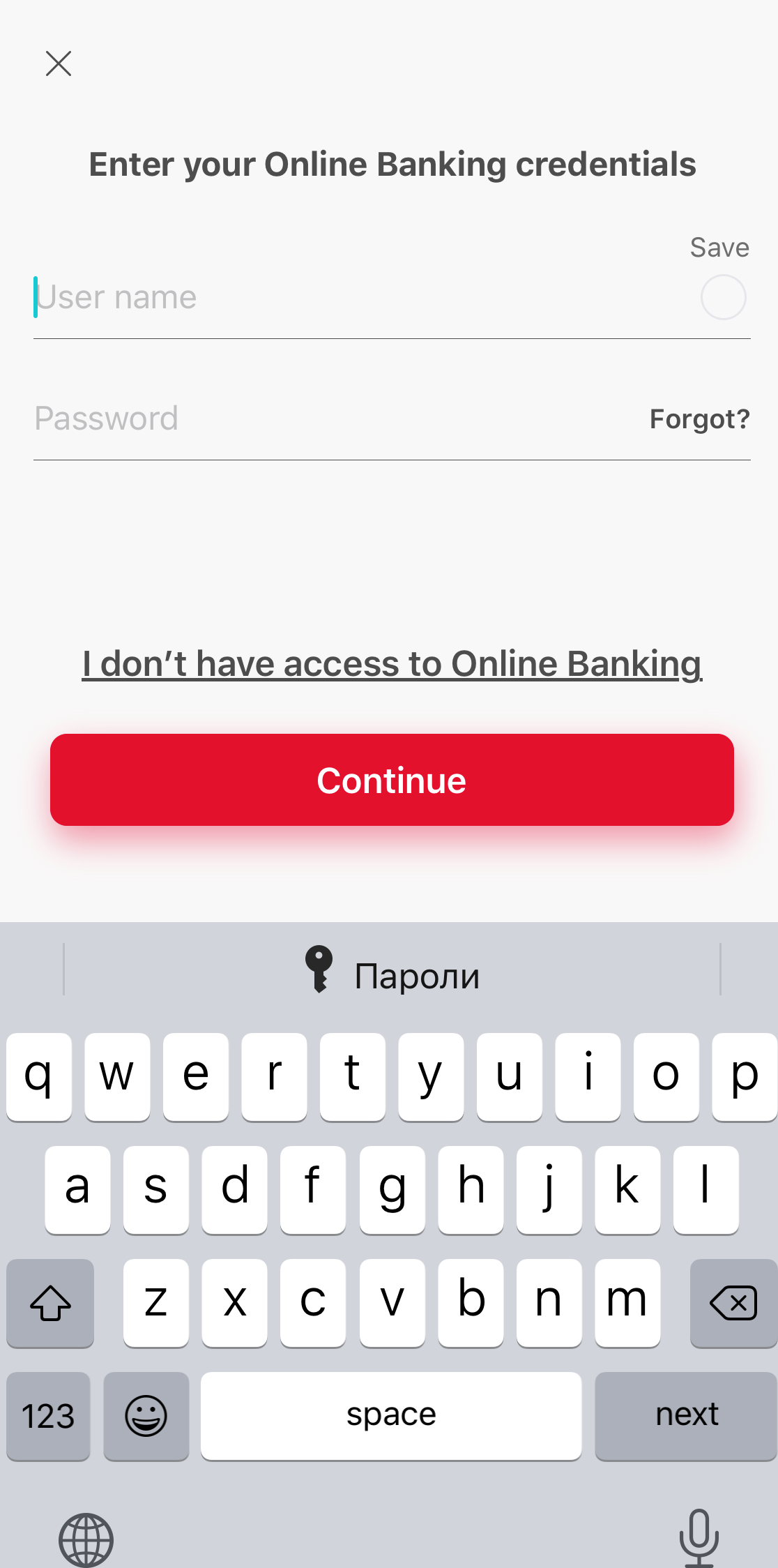
Enter your username and personal code or phone number, and press Continue. If you can't remember your username, take a look here
Keep in mind that this phone number must match the number listed in your contact information. 

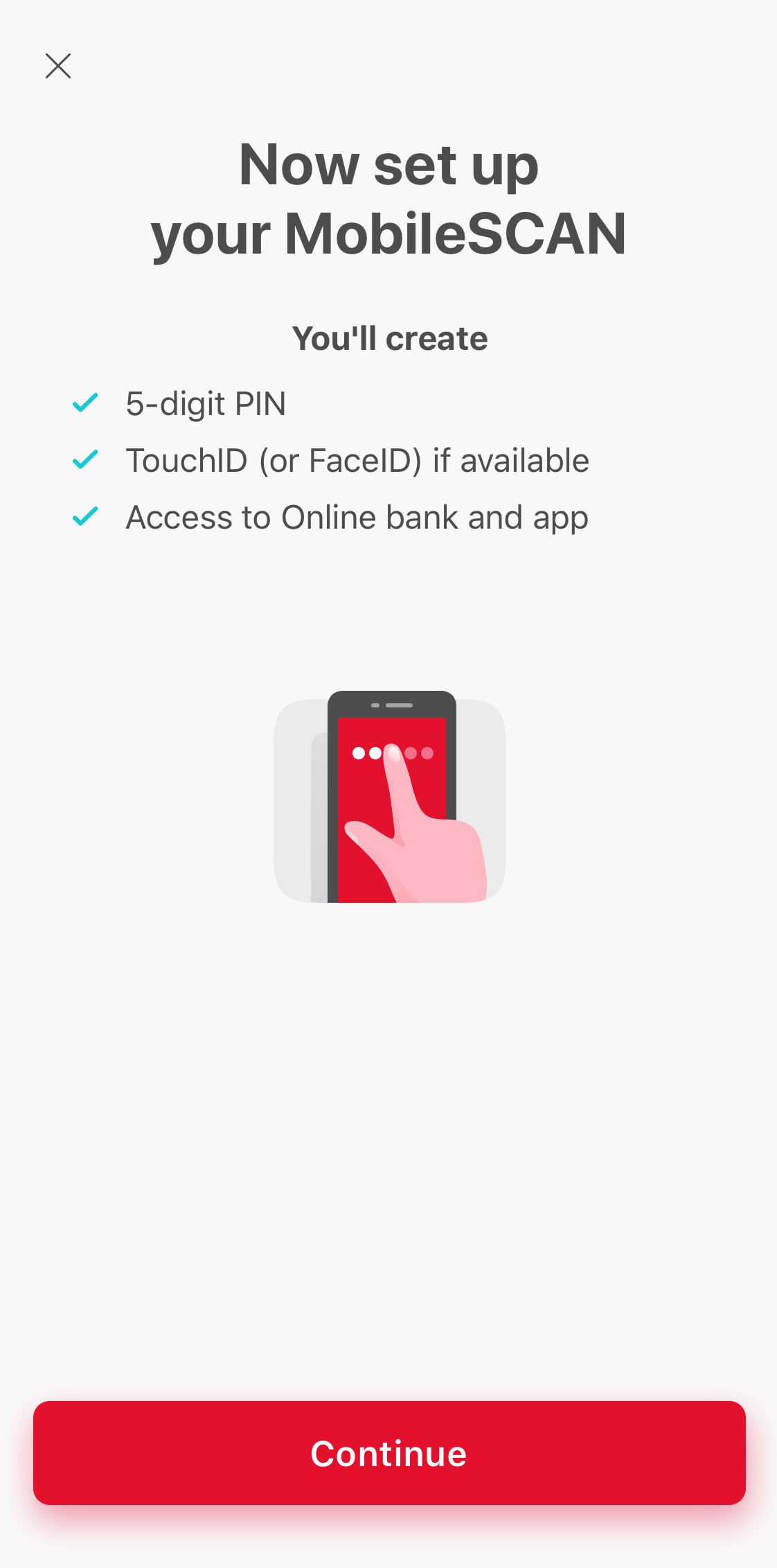
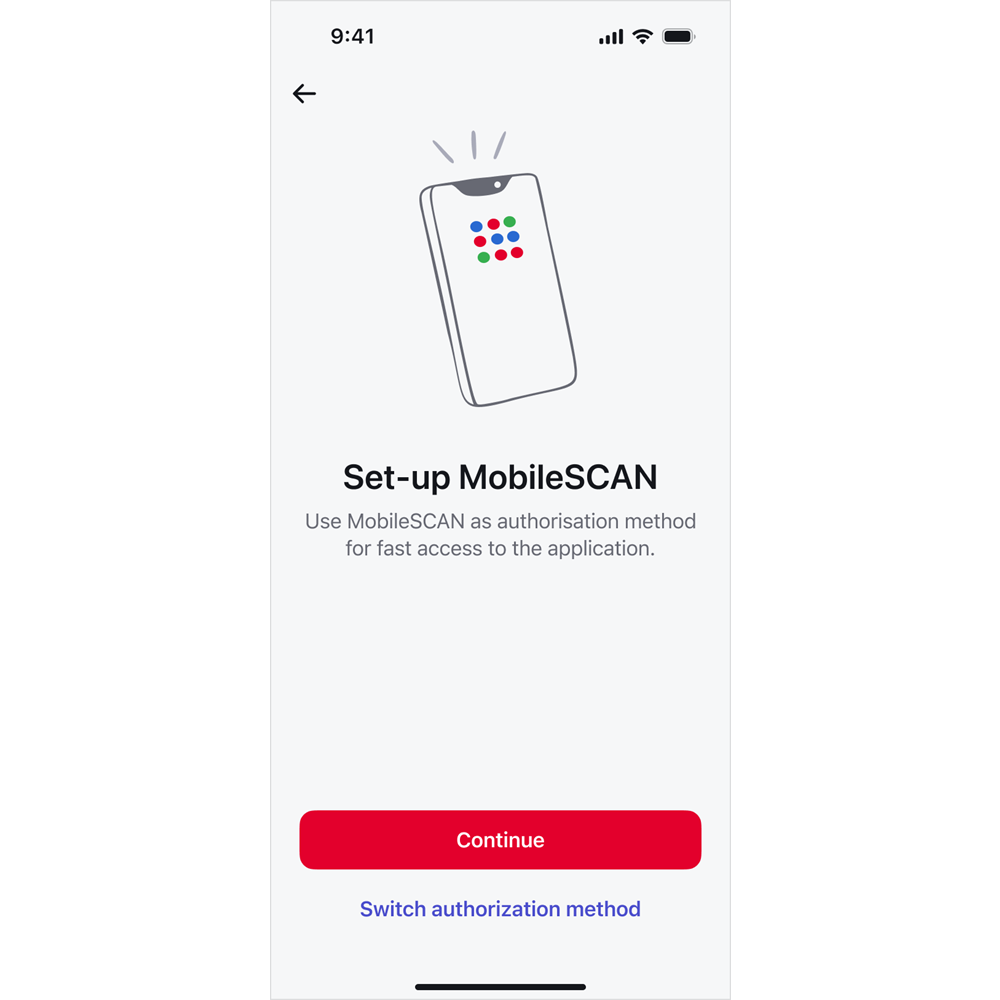
You will be taken to the MobileSCAN activation screen. Click on Continue. 

screenshot of the first MobileSCAN set-up screen in Citadele mobile app

Follow the steps in your phone and MobileSCAN will be ready to use. 

Please note that this functionality is available for app version 45.6 (or newer) for iOS or 45.5 (or newer) for Android.

If you are Citadele´s customer, one of the ways that you can obtain MobileSCAN license individually in your own Online bank. 

If you are just overseeing other customer´s accounts and you have not perviously used MobileSCAN, you should contact our customer support for further instructions. 

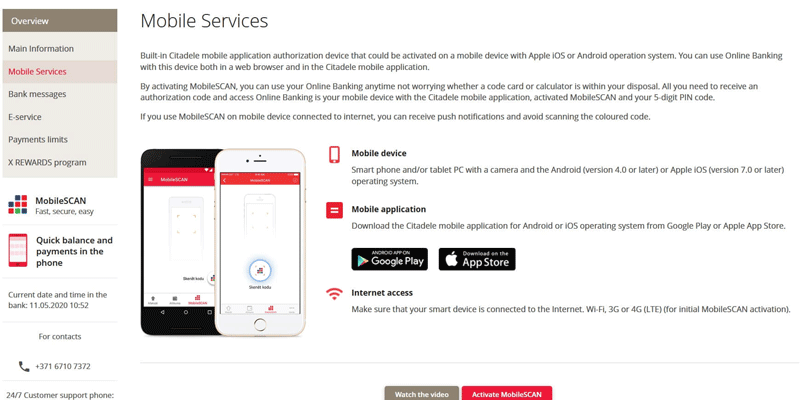
1. Log into the Citadele online bank Citadele online bank with any other available authorisation method, and on the left-hand side, choose Mobile Services.

Bear in mind that this is only available if you are the account holder!

2. Read the information displayed and click Activate MobileSCAN.

3. In parallel, take the mobile device for which you wish to activate MobileSCAN, open the Citadele app and click MobileSCAN on the welcome screen. You will see a screen from which you can begin activating MobileSCAN.

Make sure that you have reinstalled the application before starting the process! 

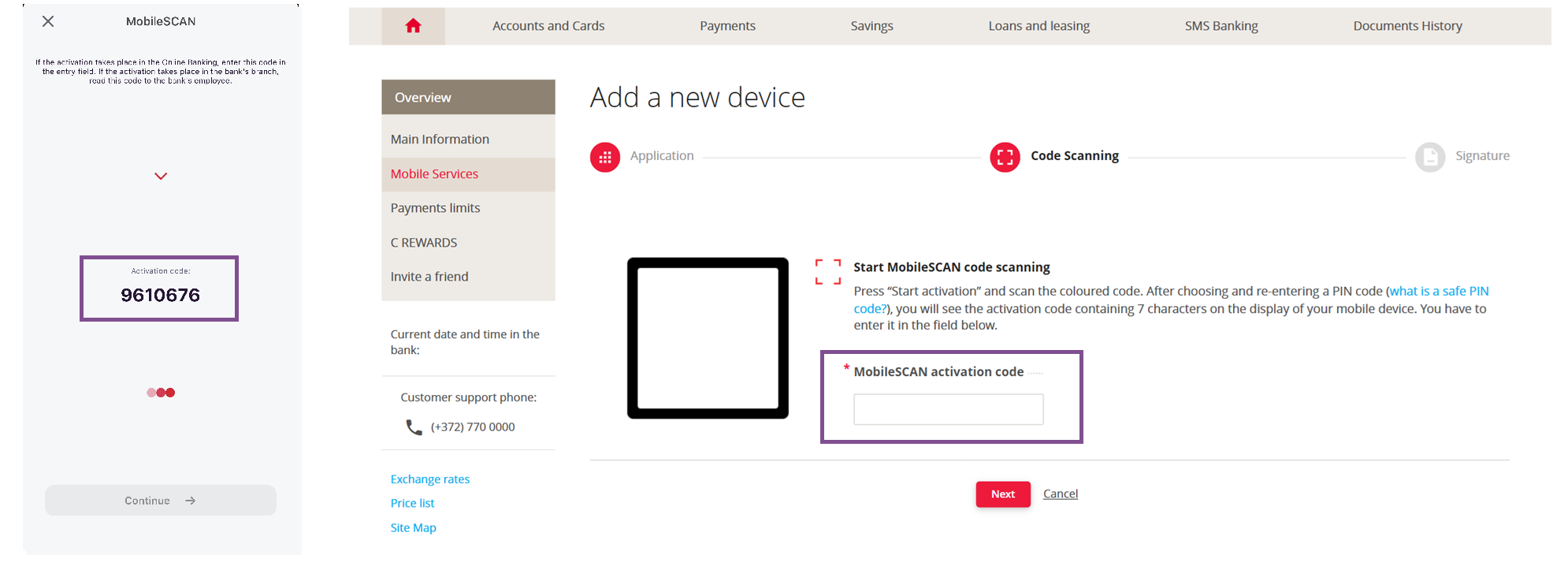
4. In the online bank, click Scan Code and use your phone to scan the colourful code from the online bank.

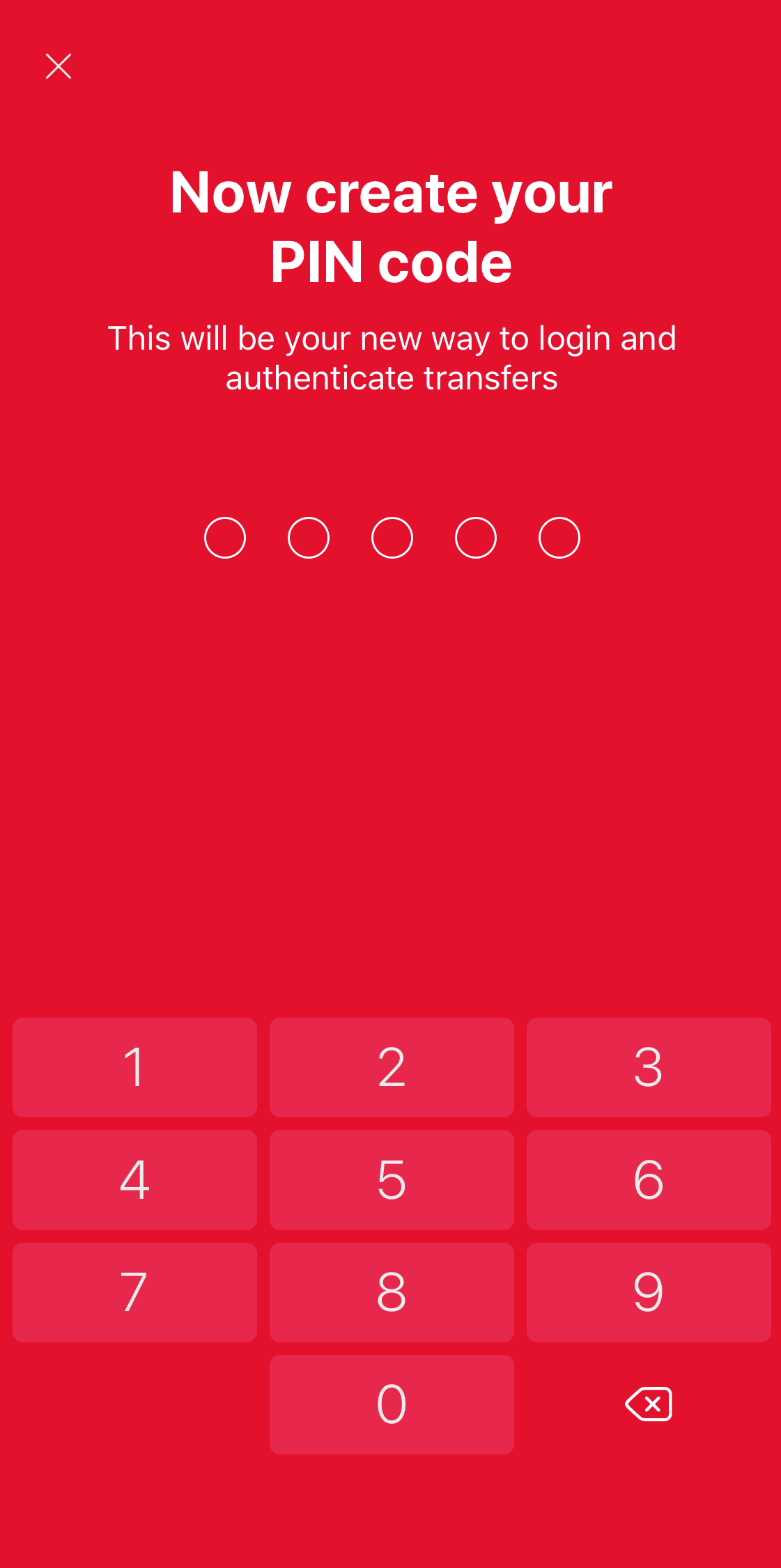
5. Next choose a 5-digit PIN code which you will use to log onto the the online bank or app and to authorise actions. You´ll have to re-enter the PIN again.

6. The screen of your device will show an activation code. This code must be entered to online bank in the MobileSCAN activation code field. 

7. You will see authorisation screen in online bank. Authorise the action with the device that you used to log into online bank! After that, click Continue on your mobile device.

And your MobileSCAN is activated!

MobileSCAN limits can be increased:

Transaction limits

For us to consider increasing your MobileSCAN limits remotely, there are two things you must do: 

1.Submit an application. 
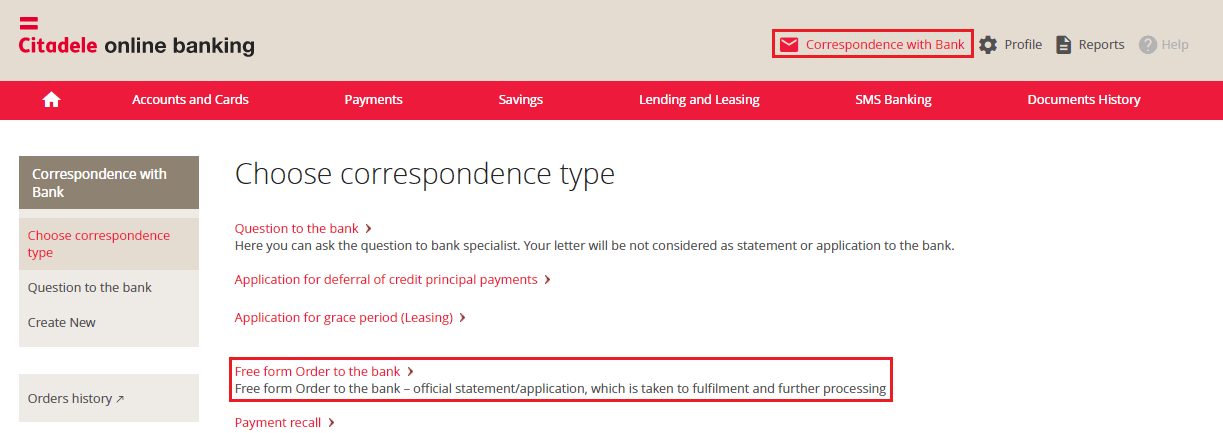
To do this, log in to the full version of online banking (through our website), and under Correspondence with Bank select Free form Order to the Bank.

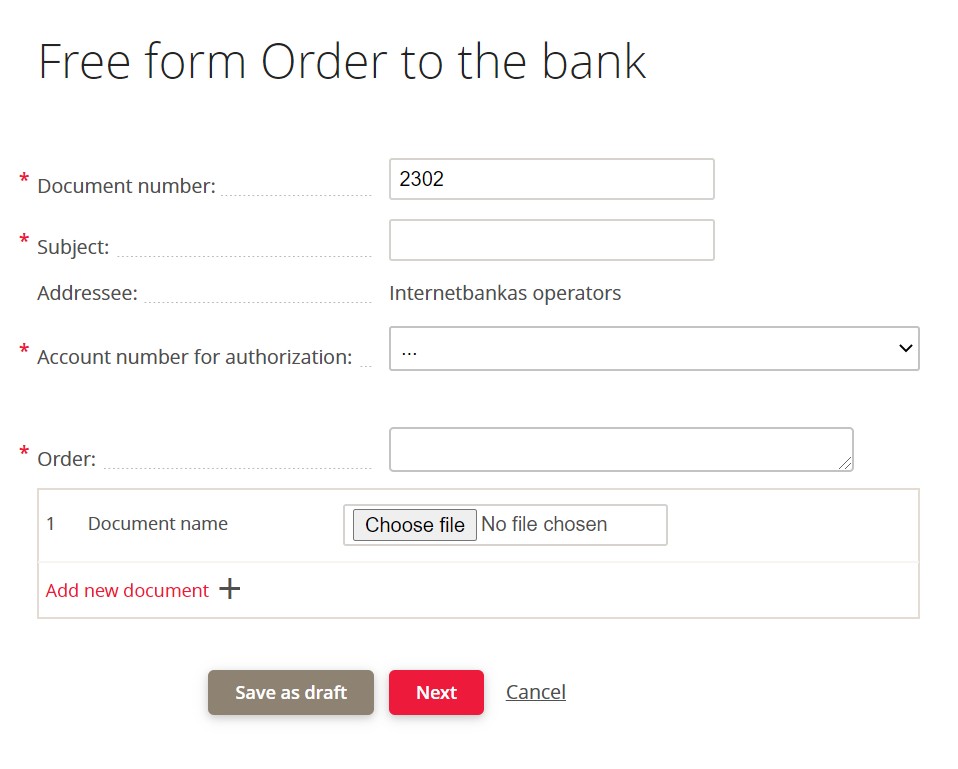
Fill in the following sections: 

  • Subject: Increasing MobileSCAN limits
  • Account number for authorisation: select any of your accounts from the list
  • Order: Fill in the text using this template: Please remotely increase my MobileSCAN limits, because … (describe the reason) 

Select Next and sign the order using a code from your authorisation device. 
You can check whether it has been successfully submitted to the bank in your Order History; you will see a “P” next to your order, which means that your application is being processed. 

2.Call the bank at 77 00 000 and inform the operator that you have submitted an application to increase your MobileSCAN limit.

Be ready to identify yourself over the phone. 

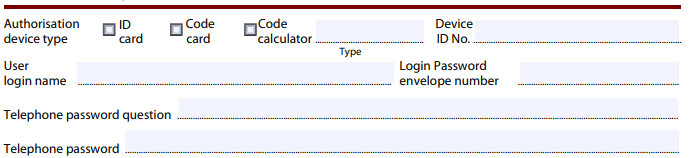
You created your username for the Online Bank when you submitted the application called “Application to Activate the Citadele Online Bank”. You can find your Online Banking username in this application under “Authorisation tool type”.

If you became a client on the app, you received your username by text to the phone number you indicated.

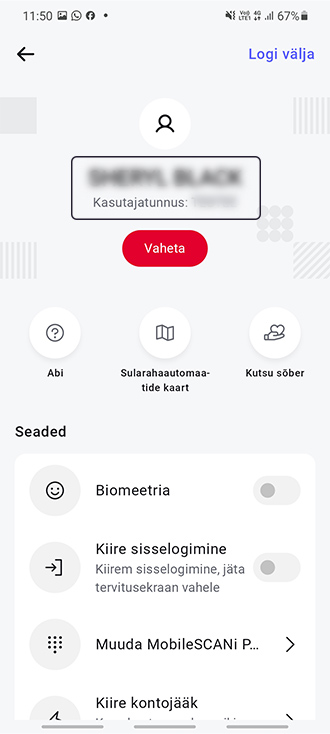
If you have access to the Citadele app, log in to it, click on the profile icon on the top right corner, under your name and surname will be your online bank username.

If you cannot find the application which contains your Online Banking username, you will have to visit a Citadele branch and bring a form of ID (passport or ID card) or contact us by calling +372 77 00 000. 

If you have forgotten your existing MobileSCAN PIN code, and you cannot log in to the Citadele app, you must disconnect and reactivate MobileSCAN in the app. The bank does not save your MobileSCAN PIN code anywhere, so we cannot remind you. To disconnect your existing MobileSCAN:

1. Open the app and click on MobileSCAN.

2. In the upper right hand part of the screen, click on the MobileSCAN settings icon.

3. Open device information and click on Disconnect this MobileSCAN device.

To reinstall MobileSCAN, if you have a private customer account with the bank, you can only activate MobileSCAN in the app:

1. Click on Log In.

2. Enter your online bank username and password.

3. MobileSCAN activation will begin automatically.

4. Ensure that this phone number is under your control and click Receive SMS.

5. Enter the code you receive by SMS

6. Enter and confirm your new PIN code.

7. Activate the use of biometrics (fingerprint, facial recognition or iris), if your phone offers this, and you have activated the use of biometrics for unlocking your phone.

8. MobileSCAN has been activated!


Bear in mind that, if you reinstall MobileSCAN in the app, transaction limits will be 3000 EUR for one payment and 3000 EUR per day. If you wish to increase your transaction limits, you will have to visit a branch in person. 

Important! The limit for one payment on the app is 10 000 EUR, regardless of other MobileSCAN limits.

If you are acting on behalf of another person (you do not have your own Citadele account), then in order to reactivate MobileSCAN, you must visit a branch and bring your old MobileSCAN license.

You can reactivate MobileSCAN in online bank by following the instruction here or doing this straight in your mobile device!

If your app was transferred from your old device or reinstated from backup, you will have to delete it and reinstall from AppStore / Google Play.

To reactivate MobileSCAN in your phone app, you will need to verify yourself with a selfie and a personal ID document. First open the Citadele app and select Log in.

screenshot of the welcome screen in Citadele mobile app

Enter your username and personal code or phone number, and press Continue. If you can't remember your username, take a look here
Keep in mind that this phone number must match the number listed in your contact information. 

You will be taken to the MobileSCAN activation screen. Click on Continue. 

screenshot of the first MobileSCAN set-up screen in Citadele mobile app

Follow the steps in your phone and MobileSCAN will be ready to use. 

Please note that this functionality is available for app version 45.6 (or newer) for iOS or 45.5 (or newer) for Android.

If you are Citadele´s customer, one of the ways that you can obtain MobileSCAN license individually in your own Online bank. 

If you are just overseeing other customer´s accounts and you have not perviously used MobileSCAN, you should contact our customer support for further instructions. 

1. Log into the Citadele online bank Citadele online bank with any other available authorisation method, and on the left-hand side, choose Mobile Services.

Bear in mind that this is only available if you are the account holder!

2. Read the information displayed and click Activate MobileSCAN.

3. In parallel, take the mobile device for which you wish to activate MobileSCAN, open the Citadele app and click MobileSCAN on the welcome screen. You will see a screen from which you can begin activating MobileSCAN.

Make sure that you have reinstalled the application before starting the process! 

4. In the online bank, click Scan Code and use your phone to scan the colourful code from the online bank.

5. Next choose a 5-digit PIN code which you will use to log onto the the online bank or app and to authorise actions. You´ll have to re-enter the PIN again.

6. The screen of your device will show an activation code. This code must be entered to online bank in the MobileSCAN activation code field. 

7. You will see authorisation screen in online bank. Authorise the action with the device that you used to log into online bank! After that, click Continue on your mobile device.

And your MobileSCAN is activated!

MobileSCAN limits can be increased:

Transaction limits

For us to consider increasing your MobileSCAN limits remotely, there are two things you must do: 

1.Submit an application. 
To do this, log in to the full version of online banking (through our website), and under Correspondence with Bank select Free form Order to the Bank.

Fill in the following sections: 

  • Subject: Increasing MobileSCAN limits
  • Account number for authorisation: select any of your accounts from the list
  • Order: Fill in the text using this template: Please remotely increase my MobileSCAN limits, because … (describe the reason) 

Select Next and sign the order using a code from your authorisation device. 
You can check whether it has been successfully submitted to the bank in your Order History; you will see a “P” next to your order, which means that your application is being processed. 

2.Call the bank at 77 00 000 and inform the operator that you have submitted an application to increase your MobileSCAN limit.

Be ready to identify yourself over the phone. 

You created your username for the Online Bank when you submitted the application called “Application to Activate the Citadele Online Bank”. You can find your Online Banking username in this application under “Authorisation tool type”.

If you became a client on the app, you received your username by text to the phone number you indicated.

If you have access to the Citadele app, log in to it, click on the profile icon on the top right corner, under your name and surname will be your online bank username.

If you cannot find the application which contains your Online Banking username, you will have to visit a Citadele branch and bring a form of ID (passport or ID card) or contact us by calling +372 77 00 000. 

More opportunities

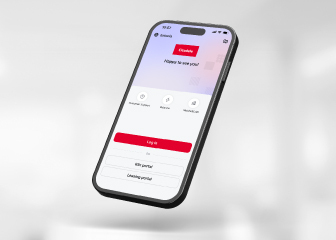
Mobile phone screen displaying the Citadele mobile app login view.

Mobile app

Use the bank’s services at a time and place convenient to you. Confirm payments using your face or fingerprint.
Find out more
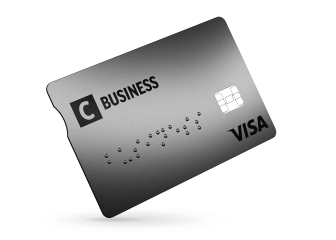
A gray business payment card with the text 'C Business' and the 'Visa' logo

C Business card

A card with travel insurance included.
Find out more

Financing for business

Choose the most suitable financing method for your business needs and growth.
Find out more
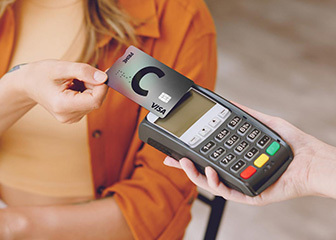
Making a payment with a card using a contactless payment terminal.

Payment acceptance

Various solutions for accepting payments in retail locations and online.
Find out more